
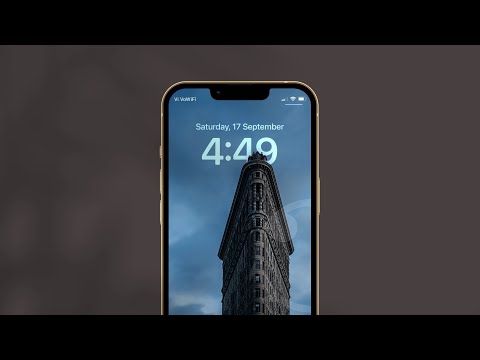
The evolution of the iOS lock screen has reached a point of seamless architectural integration, thanks to advanced neural processing. In iOS 26, the "Depth Effect" remains a flagship feature, utilizing the device’s Neural Engine to perform real-time image segmentation. This allows the system to identify the subject of a photo and intelligently layer it in front of the time display, creating a multi-dimensional aesthetic.
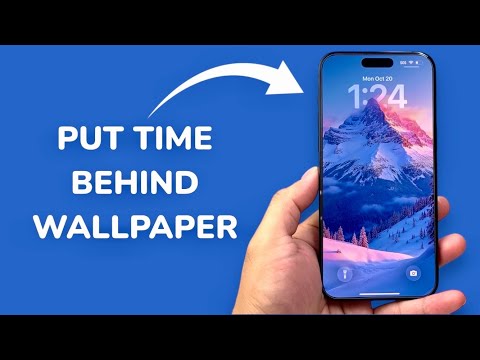
Understanding the AI Depth Mechanism
To achieve the effect where the clock sits behind your wallpaper subject, iOS 26 leverages the Vision Framework. The software creates a high-resolution multilayered mask. By isolating the foreground subject—whether it is a person, pet, or building—the AI-driven depth map determines exactly which pixels of the clock should be obscured. In this latest version, the edge detection has been refined to handle complex textures like hair and translucent glass with pinpoint accuracy.
Step-by-Step: Enabling the Depth Effect on iOS 26
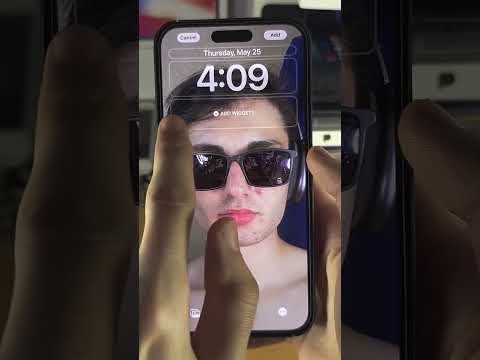
To put the time behind your wallpaper, follow these technical steps to ensure the AI subject isolation triggers correctly:
1. Unlock your iPhone but stay on the Lock Screen. Long-press on the background to enter the edit mode.
2. Tap the (+) icon to create a new wallpaper or select Customize on an existing one.
3. Choose a photo from your library. For the best results, select an image with a clear, distinct subject in the lower two-thirds of the frame.
4. Once the image is loaded, the iOS 26 AI engine will automatically attempt to segment the image. If the subject is compatible, you will see the clock partially obscured.
5. Tap the three-dot (More) icon in the bottom right corner of the screen. Ensure that Depth Effect is checked.
6. Adjustment: Use two fingers to pinch and crop the image. If the subject covers more than 25-30% of the clock, the system will automatically disable the effect to maintain legibility. Position the subject so it only slightly overlaps the numbers.
Troubleshooting Depth Effect Failures
If the time refuses to move behind your wallpaper, it is usually due to a layering conflict. Note that the Depth Effect will be automatically disabled if you use Lock Screen Widgets. The current automation logic prioritizes widget data over aesthetic layering. To restore the depth, remove all widgets from the area below the clock. Additionally, ensure the photo is not too zoomed in, as the AI requires enough "context" around the subject to define the depth plane.
AI Implementation Score
The following table evaluates the efficiency and technical execution of the Depth Effect feature in iOS 26:
| Metric | Score | Technical Analysis |
|---|---|---|
| Subject Isolation | 9.8/10 | Near-perfect edge detection using updated Neural Engine weights. |
| Processing Speed | 10/10 | Instantaneous mask generation upon image selection. |
| Automation | 9.2/10 | System automatically suggests optimal cropping for depth. |
| User Control | 8.5/10 | Limited by the restriction of not being able to use widgets simultaneously. |
By mastering these settings, users can transform a static interface into a dynamic, AI-enhanced gallery that highlights the power of modern mobile silicon.
