
Optimizing your mobile device for seamless communication is no longer just about signal bars; it is about leveraging software-defined networking to ensure high-fidelity voice transmission. On Android devices, WiFi Calling uses the Internet Protocol (IP) to route voice data through a local wireless network, bypassing congested cellular towers. This process is managed by the device's RIL (Radio Interface Layer) and internal AI-driven handover algorithms that determine the optimal path for data packets.
The AI Implementation Score
In the context of modern smartphone automation, WiFi Calling ranks high due to its ability to autonomously switch frequencies without user intervention. Here is how it scores based on our Smart AI Fix metrics:
| Metric | Score | Analysis |
|---|---|---|
| Network Optimization AI | 9.2/10 | Predictive algorithms manage seamless handoffs between VoLTE and WiFi. |
| Energy Efficiency | 8.5/10 | Reduces battery drain by decreasing the power required for cellular radio search. |
| Audio Processing AI | 8.8/10 | On-device DSPs (Digital Signal Processors) filter background noise during IP calls. |
| Automation Capability | 9.5/10 | Automatically activates based on pre-set signal threshold triggers. |
How to Enable WiFi Calling on Modern Android Devices
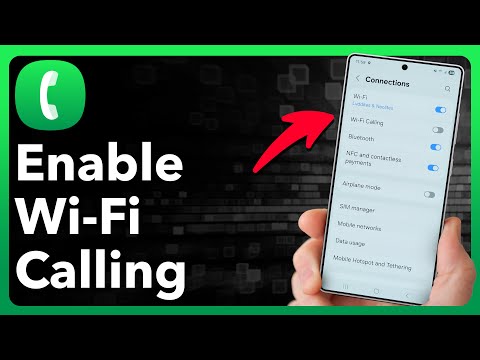
While the Android ecosystem is diverse, the core software architecture for enabling this feature is standardized. Follow these technical steps to activate the service:
Step 1: Access Network Settings
Open the Settings app on your Android device. Navigate to Connections or Network & Internet. This is where the hardware-to-software interface for all communication protocols is housed.
Step 2: Locate SIM & Mobile Network
Tap on Mobile Network or SIMs. If you are using a Dual-SIM setup, ensure you select the specific SIM card you wish to configure for IP-based calling.
Step 3: Toggle WiFi Calling
Scroll down to find the Wi-Fi Calling option. Switch the toggle to On. In some versions of Android, you may need to tap into this menu to set Calling Preferences (e.g., "Call over Wi-Fi" vs. "Call over mobile network").
Technical Troubleshooting and Automation
If the option does not appear, it is likely that your carrier’s Provisioning Profile has not enabled IMS (IP Multimedia Subsystem) services for your account. You can verify this by entering the testing menu (dialing ##4636##) and checking the IMS Service Status.
To further automate your efficiency, you can use Android Routines or AI-driven apps like Tasker to force WiFi Calling on only when your phone connects to a specific home or office SSID, ensuring that you are always utilizing the most stable and cost-effective bandwidth available.
