
Optimizing your Android interface is the first step toward achieving a high-efficiency digital workflow. Whether you are using a stock Android build or a Samsung One UI device, the ability to rearrange applications allows for better muscle memory and faster access to high-priority tools. In the context of modern software design, your home screen should function as a launchpad for productivity rather than a cluttered repository of icons.
The Fundamental Drag-and-Drop Procedure
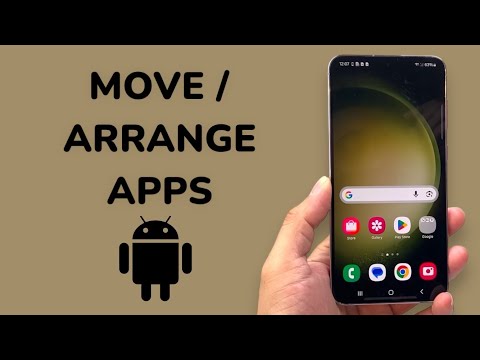
To move an app on any Android device, locate the icon on your home screen or within the app drawer. Perform a long-press on the icon until a contextual menu appears or the icon begins to "float." Without lifting your finger, slide the icon to your desired location. If you move the icon to the edge of the screen, the system will automatically transition to the adjacent home screen panel. Release your finger to lock the icon into the new grid coordinate.
Creating Intelligent App Folders
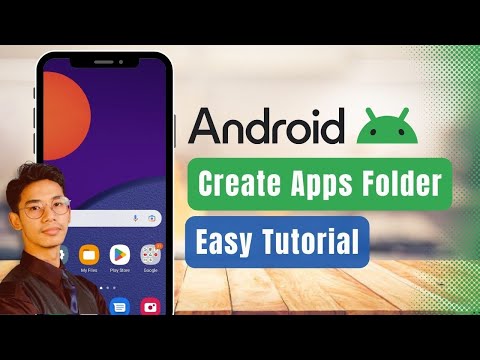
For users looking to automate their mental categorization, creating folders is essential. To do this, drag one app icon directly on top of another. The Android system will automatically generate a folder container. You can then tap the folder to rename it—ideally categorizing by function such as "Productivity," "Finance," or "AI Tools." This reduces visual noise and streamlines navigation.
Advanced Organization on Samsung Galaxy Devices
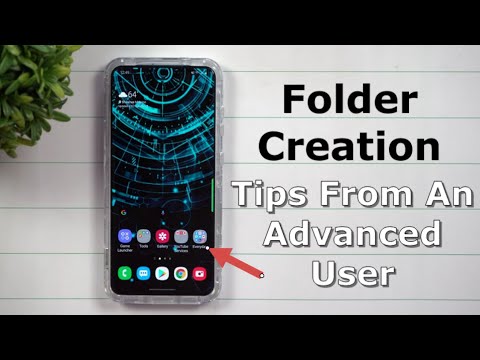
Samsung’s One UI offers additional granular control. By long-pressing an empty space on the home screen and selecting Settings, you can adjust the "Home screen grid" (e.g., 4x5, 5x5, or 5x6). A denser grid allows for more apps per page, which is beneficial for power users. Furthermore, you can use the "Clean up pages" function in the app drawer settings to automatically close gaps left by uninstalled applications.
AI-Driven Layout Optimization
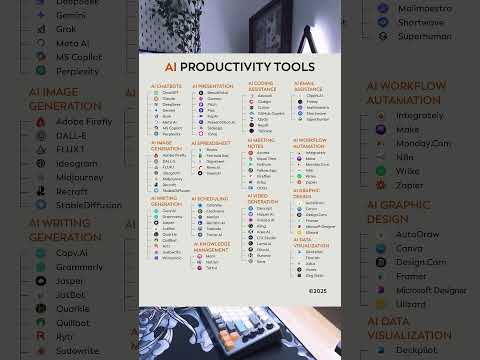
While manual moving is the standard, many modern Android launchers now incorporate AI-based predictive placement. Third-party launchers like Niagara or Microsoft Launcher analyze your usage patterns to surface the apps you need most at specific times of the day. This reduces the need for manual rearranging by dynamically shifting your most-used software to the "prime real estate" of your thumb’s reach.
AI Implementation Score
| Feature | Automation Level | Efficiency Gain | AI Score |
|---|---|---|---|
| Manual Drag & Drop | Low | Moderate | 1/10 |
| Smart Folders | Medium | High | 5/10 |
| Predictive App Suggestions | High | Very High | 9/10 |
By mastering these movement techniques and leveraging predictive UI elements, you transform your Android device from a static phone into a dynamic, AI-optimized workstation.
