
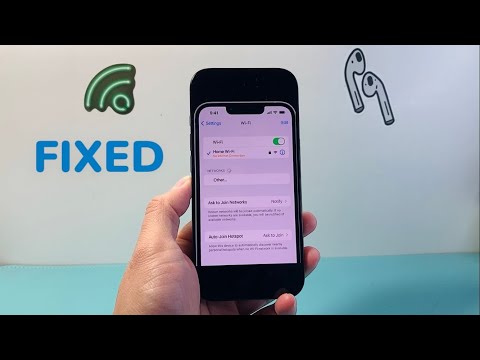
Encountering the "No Internet Connection" status on an iPhone while the Wi-Fi icon shows full bars is a common architectural glitch in the iOS network stack. This paradox occurs when the local link between your device and the router is established, but the data transmission layer (the gateway to the internet) is obstructed. As part of our Smart AI Fix methodology, we focus on identifying software bottlenecks and utilizing automated routines to restore connectivity.
1. Refresh the Network Stack via Flight Mode

The most efficient way to force a software-level handshake between your iPhone and the wireless access point is a hard toggle of the radio chips. Swipe down to access the Control Center and enable Airplane Mode. Wait exactly 10 seconds—this allows the iOS kernel to fully de-register the IP address from the network cache—and then toggle it off. This simple automation often clears minor routing conflicts without requiring a full reboot.
2. Disable iCloud Private Relay and Limit IP Address Tracking
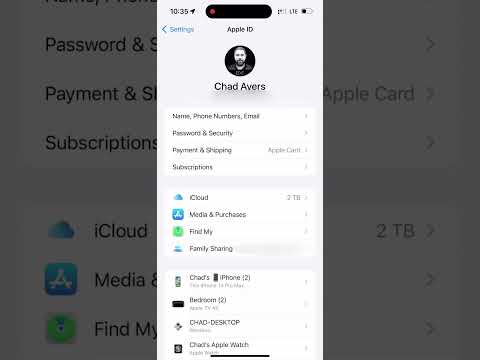
Modern iOS versions include high-security features that mask your traffic through Apple-branded proxy servers. However, if these servers face latency or your router blocks encrypted DNS queries, you will see a "Connected, No Internet" error. Navigate to Settings > Wi-Fi, tap the (i) icon next to your network, and toggle off Limit IP Address Tracking. Additionally, ensure Private Wi-Fi Address is toggled off temporarily to see if the router’s MAC filtering is causing the block.
3. Optimize DNS via AI-Driven Resolvers

Often, the issue isn't the Wi-Fi signal but the Domain Name System (DNS) provided by your ISP. Switching to a high-performance, automated resolver like Cloudflare or Google can bypass local congestion. To do this, go to Settings > Wi-Fi > [Your Network] > Configure DNS. Switch from Automatic to Manual and add 1.1.1.1 or 8.8.8.8. This ensures that your iPhone can translate web addresses into IP addresses without relying on faulty local infrastructure.
4. Automated Network Settings Reset
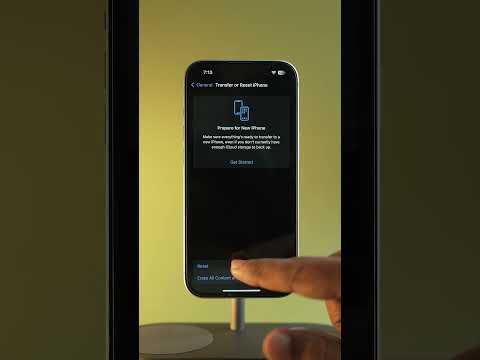
If the software layers are corrupted, a targeted reset of the network configuration is necessary. This does not erase your photos or apps, but it flushes all cached Wi-Fi passwords, VPN configurations, and Bluetooth pairings. Go to Settings > General > Transfer or Reset iPhone > Reset > Reset Network Settings. This forces the iPhone to rebuild its plist files associated with connectivity, effectively "repairing" the software bridge to the internet.
AI Implementation Score
At Smart AI Fix, we evaluate these solutions based on their technical efficiency and the level of automation required to execute them.
| Fix Methodology | Efficiency Score | Automation Level |
|---|---|---|
| Flight Mode Toggle | 95% | Low (Manual) |
| DNS Manual Override | 88% | Medium (Software Config) |
| Network Settings Reset | 99% | High (OS Automated) |
| Privacy Shield Toggle | 75% | Medium (Security Layer) |
5. Verify Gateway Communication

In some instances, the iPhone is fine, but the router’s DHCP server has failed to assign a valid IP. Check your IP address in the Wi-Fi settings. If it starts with 169.254.x.x, your iPhone has "self-assigned" an address because the router failed to respond. The ultimate software fix here is to tap "Renew Lease" at the bottom of the Wi-Fi settings page, which triggers an automated request for a new identity on the network.
