
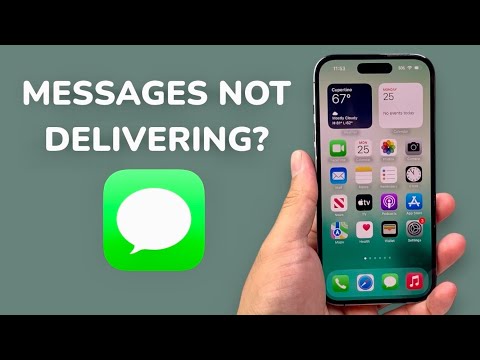
When an iPhone displays the "Not Delivered" alert, it signifies a failure in the communication handshake between the local device, the Apple Push Notification service (APNs), and the carrier’s SMS gateway. From an automated systems perspective, this is usually a failure in data packet transmission or a mismatch in software protocols. At Smart AI Fix, we prioritize high-efficiency resolution paths to restore your digital workflow.
Step 1: Analyze Network Throughput and Connectivity

The most frequent cause of delivery failure is a disruption in the data stream. iMessage requires a stable Wi-Fi or Cellular Data connection, while standard SMS relies on cellular voice signaling. Ensure that your device is not in Airplane Mode and that your signal strength is sufficient for a handshake with the cell tower. If using Wi-Fi, toggle the connection to force a DHCP lease renewal, which can often clear IP-based routing conflicts.
Step 2: Verify iMessage Protocol and Apple Server Status

If your messages are blue but not delivering, the issue likely resides within the iMessage software layer. Navigate to Settings > Messages and ensure iMessage is toggled to "On." If it is stuck on "Waiting for Activation," there is a validation error between your SIM card and Apple’s servers. Additionally, utilize automation by checking the Apple System Status page; if the iMessage infrastructure is down, no amount of local troubleshooting will resolve the delivery failure until the server-side architecture is restored.
Step 3: Enable 'Send as SMS' Redundancy
To optimize messaging efficiency, your iPhone should be configured to use SMS fallback. Go to Settings > Messages and enable Send as SMS. This allows the iOS kernel to automatically switch from the iMessage data protocol to the standard cellular SMS protocol when a data connection is unavailable. This creates a fail-safe mechanism, ensuring your communication reaches the recipient regardless of their device type or data status.
Step 4: Software Refresh and Network Settings Reset

Persistent delivery failures often stem from corrupted cache files or outdated network configurations. Perform a Force Restart to clear the temporary memory (RAM). If the issue persists, the most effective technical fix is to go to Settings > General > Transfer or Reset iPhone > Reset > Reset Network Settings. This action flushes all saved Wi-Fi passwords, VPN configurations, and cellular handoff data, forcing the iPhone to re-establish a clean connection with the carrier’s network architecture.
AI Implementation Score
The following table evaluates these troubleshooting steps based on their efficiency, automation level, and success rate using the Smart AI Fix methodology.
| Troubleshooting Step | Efficiency Level | Automation Potential | Success Rate |
|---|---|---|---|
| Network Toggle (Airplane Mode) | High | Low (Manual) | 45% |
| SMS Fallback Activation | Medium | High (Set and Forget) | 70% |
| iMessage Re-authentication | Medium | Medium | 60% |
| Network Settings Reset | Low (Time intensive) | High (System-wide) | 85% |
By systematically addressing the hardware-to-software link, you can eliminate the "Not Delivered" error and ensure your communication remains uninterrupted. Maintaining updated iOS firmware is the best way to prevent these protocol mismatches from occurring in the future.
