
The error message "Face ID Required: Stolen Device Protection is turned on" is not a system glitch; rather, it is a high-level security protocol introduced in iOS 17.3. This feature utilizes on-device machine learning to monitor user behavior and location patterns. When the device detects it is in an "unfamiliar location," it restricts access to sensitive settings—such as changing an Apple ID password or disabling Find My—by requiring biometric authentication and, in some cases, enforcing a one-hour Security Delay.

Understanding the Security Logic and Geofencing

Stolen Device Protection leverages the Neural Engine within the A-series chips to establish a baseline of "Significant Locations" (usually Home or Work). If you attempt to modify deep system settings outside these geofenced zones, the software overrides passcode entry, making Face ID the only valid credential. This prevents a thief who has "shouldersurfed" your passcode from taking over your digital identity.
Method 1: Returning to a Familiar Location
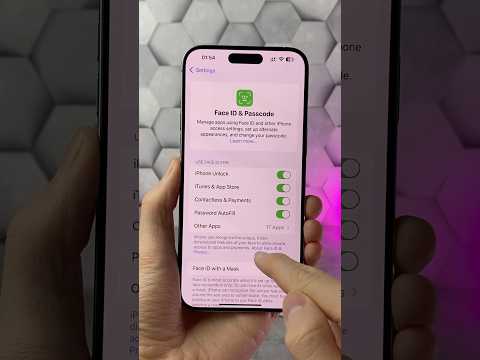
The most efficient way to bypass the "Face ID Required" prompt without waiting for a security timer is to physically move the device to a Significant Location. The system verifies this via GPS and Wi-Fi SSID mapping. Once the device recognizes a trusted environment, the Security Delay is automatically waived, and you can modify settings or disable the feature immediately under Settings > Face ID & Passcode > Stolen Device Protection.
Method 2: Navigating the 60-Minute Security Delay
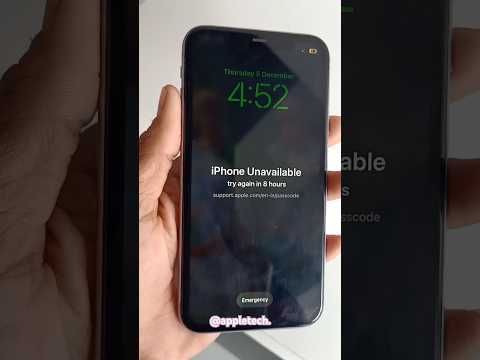
If you are unable to reach a familiar location and Face ID is failing or required for a specific change, you must initiate the Security Delay protocol. This is a software-enforced cooldown period designed to give the rightful owner time to mark the device as lost.
1. Go to Settings and select Face ID & Passcode.
2. Authenticate with your current Face ID.
3. Tap Turn Off Stolen Device Protection.
4. The system will prompt: "Security Delay Required." Tap Start Security Delay.
5. Wait for the 60-minute countdown to conclude. You will receive a push notification when the delay expires. You then have a limited window to make your changes.
Method 3: Troubleshooting Biometric Authentication Failures

If the error persists because Face ID is not recognizing your face while the protection is active, the software's biometric layer may need a refresh. Ensure the TrueDepth camera array is clean. If Face ID is completely broken, you may be locked out of these settings indefinitely until the device is restored via a Mac or PC in DFU mode, though this will require your iCloud credentials due to Activation Lock.
AI Implementation Score
The following table evaluates the efficiency and impact of the Stolen Device Protection software architecture:
| Metric | Score (1-10) | Technical Analysis |
|---|---|---|
| Security Efficacy | 9.5 | Effectively neutralizes passcode theft via biometric enforcement. |
| AI Automation | 8.0 | Uses Significant Locations for seamless UX transitions. |
| User Friction | 4.0 | The 60-minute delay causes significant downtime for legitimate users. |
| System Integration | 9.0 | Deeply embedded into the iOS kernel and Secure Enclave. |
To optimize your device for this feature, ensure that Significant Locations is toggled 'On' in Settings > Privacy & Security > Location Services > System Services. This allows the AI to accurately identify your safe zones, reducing the likelihood of being caught in a security delay when you need to access your settings.
