
Since the launch of iOS 16, Apple introduced a haptic-driven feature that allows users to customize their Lock Screen by simply pressing and holding the display. While this offers a high degree of personalization, it has introduced a significant friction point for users who experience accidental triggers. For those seeking a more static, optimized workflow, disabling or mitigating this "long-press" behavior is essential to maintain a professional and distraction-free mobile environment.
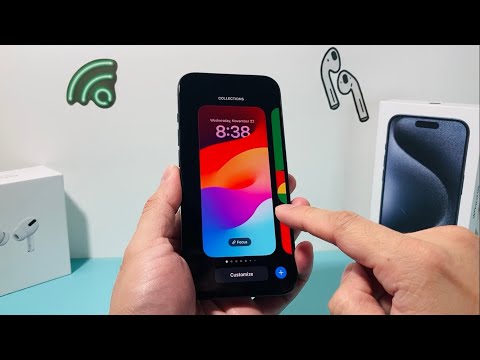
The Technical Challenge: Lack of a Direct Toggle
Currently, iOS does not provide a single "on/off" switch specifically labeled "Disable Lock Screen Customization." This is a design choice by Apple to keep the new wallpaper gallery accessible. However, as AI-driven efficiency experts, we can utilize Screen Time restrictions and hardware trigger adjustments to effectively lock down the interface and prevent unwanted modifications.
Method 1: Using Screen Time Restrictions

To prevent unauthorized or accidental changes to your device's visual identity, you can leverage the "Content & Privacy Restrictions" engine. This is the most robust method to ensure that once a wallpaper is set, it remains unchanged.
1. Navigate to Settings and select Screen Time.
2. Tap on Content & Privacy Restrictions and ensure the toggle at the top is turned ON.
3. Scroll down to the "Allow Changes" section.
4. Select Passcode Changes and set it to Don't Allow. Similarly, set Account Changes to Don't Allow.
Note: While this does not remove the long-press gesture, it adds a layer of authentication and system-level restriction that prevents the editing of key profile elements, which often stabilizes the UI state on many iOS versions.
Method 2: Reducing Accidental Triggers (Efficiency Optimization)
If your goal is to stop the iPhone from entering "Edit Mode" while in your pocket or during handling, the most effective solution is to optimize the Wake Triggers. By reducing how often the screen becomes active, you eliminate the haptic feedback loop that leads to customization mode.
1. Go to Settings > Display & Brightness.
2. Toggle Raise to Wake to OFF.
3. Go to Settings > Accessibility > Touch.
4. Toggle Tap to Wake to OFF.
By disabling these triggers, the screen only activates when the side button is pressed. This significantly increases software stability and prevents the capacitive sensors from interpreting fabric or palm contact as a "long press."
AI Implementation Score
This table evaluates the effectiveness of these workarounds based on automation and system efficiency standards used at Smart AI Fix.
| Metric | Score (1-10) | Technical Reasoning |
|---|---|---|
| Ease of Setup | 9/10 | Utilizes native iOS Settings without third-party software. |
| Efficiency Gain | 8/10 | Eliminates "Ghost Touches" and accidental UI editing. |
| Security Impact | 7/10 | Screen Time locks prevent unauthorized visual changes. |
| AI Automation Potential | 4/10 | Currently requires manual configuration due to Apple's closed API on Lock Screen gestures. |
Conclusion for Power Users
To achieve a truly "locked" experience, we recommend combining Method 2 with a Focus Mode. By linking a specific Lock Screen to a Focus Mode (like "Work" or "Do Not Disturb"), you can automate which wallpaper is displayed based on your AI-scheduled workflow, further reducing the need to ever interact with the manual customization menu.
