
Optimizing Random Access Memory (RAM) on Android has evolved from simple task-killing to managing sophisticated kernel-level resource allocation. As a Senior Tech Blogger at Smart AI Fix, I focus on how software automation and AI-driven background management can keep your device running at peak efficiency without compromising the integrity of the operating system.

Understanding Android RAM Management and AI Prediction

Modern Android versions utilize a Linux-based memory management system that operates on the principle that "empty RAM is wasted RAM." However, when background processes become bloated, the Low Memory Killer (LMK) may not act fast enough. Modern AI integration in chipsets now predicts which apps you will open next, pre-loading them into volatile memory. To "clear" RAM effectively today, you must work with these algorithms rather than against them.
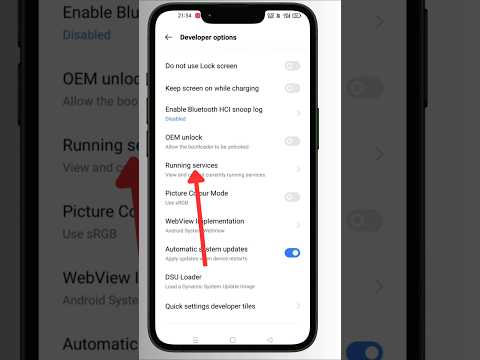
Step 1: Accessing the 'Running Services' via Developer Options

To see exactly what is consuming your memory in real-time, you must bypass the standard user interface. This is the most surgical way to identify "memory leaks" in poorly optimized software.
1. Navigate to Settings > About Phone and tap Build Number seven times to unlock Developer Options.
2. Go to Settings > System > Developer Options.
3. Select Running Services. Here, you will see a breakdown of System, Apps, and Free RAM.
4. Identify high-consumption third-party apps and select Stop to terminate their background cached processes.
Step 2: Configuring Background Process Limits
For users seeking automation, you can restrict how many processes the Android OS allows to remain active. This forces the system to prioritize active tasks and prevents AI-driven pre-loading from over-saturating the LPDDR5/5X modules.
Within Developer Options, scroll down to the Apps section and locate Background process limit. Shifting this from "Standard limit" to "At most 3 processes" can significantly improve performance on devices with 6GB of RAM or less by reducing the overhead of background synchronization.
Step 3: Leveraging Virtual RAM (AI-Swap Files)

Many modern Android manufacturers (Samsung, Xiaomi, OnePlus) have introduced RAM Plus or Memory Extension features. This uses a portion of your high-speed UFS storage as "Virtual RAM." While slower than physical RAM, the onboard AI manages "stale" data by moving it to the storage swap file, freeing up the fast physical RAM for high-priority tasks like gaming or 4K video rendering.
To enable this, go to Settings > Battery and Device Care > Memory > RAM Plus and select the maximum allowable allocation.
AI Implementation Score
This table evaluates the effectiveness of different RAM clearing methods based on their reliance on automation and AI efficiency.
| Method | Automation Level | Precision | Efficiency Score (1-10) |
|---|---|---|---|
| Manual Task Killing | Low | High | 4/10 |
| Developer Process Limits | High | Medium | 8/10 |
| AI Virtual RAM (Swap) | Full | High | 9/10 |
| Third-Party 'Cleaners' | Medium | Low | 2/10 |
Final Verdict: Stop Using "Task Killer" Apps

From a senior technical perspective, third-party RAM cleaning apps are largely obsolete. They often consume more power and CPU cycles by constantly triggering the Android Activity Manager to restart essential services. Relying on the built-in AI-driven Adaptive Battery and manual Developer Options remains the most sophisticated way to maintain a high-performance Android environment.
