
The introduction of Standby Mode in iOS 17 has transformed the iPhone from a passive charging device into an active, glanceable workstation. For users focused on AI efficiency and software automation, the default widget configurations often fall short of professional needs. Optimizing these widgets is essential for maintaining a high-velocity workflow even when your device is docked.
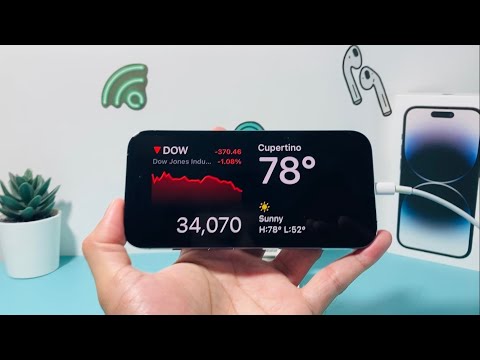
Entering the Standby Customization Interface

To modify your widgets, your iPhone must first be in Standby Mode. This requires the device to be locked, positioned horizontally (landscape), and connected to a power source (MagSafe, Qi, or Lightning/USB-C). Once the Standby interface is active, long-press on either the left or right widget stack. Your device will prompt for Face ID or passcode authentication to enter the editing layer.
In this mode, the interface shifts into a "jiggle" state, similar to the standard iOS Home Screen. This allows you to interact with individual Smart Stacks—collections of widgets that utilize on-device machine learning to surface information based on your current context and habits.
Adding and Removing High-Efficiency Widgets

To remove a redundant widget, tap the minus (-) icon located at the top-left corner of the specific widget card. To add a new tool, tap the plus (+) icon in the top-left corner of the screen. This opens the widget gallery, where you can search for third-party integrations or native Apple utilities such as Calendar, Reminders, or HomeKit controls.
For those prioritizing automation, adding the "Shortcuts" widget to Standby Mode allows for one-tap execution of complex AI workflows or smart home scenes directly from the lock screen interface.
Leveraging AI: Smart Rotate and Widget Suggestions

Within the editing interface, you will notice two critical toggles: Smart Rotate and Widget Suggestions. Activating Smart Rotate enables Apple’s neural engine to analyze your usage patterns—such as checking the weather at 8:00 AM or stock tickers at 9:30 AM—and automatically rotate the stack to show the most relevant data. Widget Suggestions allows iOS to occasionally insert a new widget into your stack that it predicts you might need, based on your location or activity.
To toggle these features, tap the icons located at the bottom center of the screen while in the widget editing view. For a controlled, distraction-free environment, we recommend keeping "Widget Suggestions" off while leaving "Smart Rotate" on for AI-driven data delivery.
AI Implementation Score: Standby Mode
| Criteria | Score (1-10) | Technical Notes |
|---|---|---|
| Contextual Awareness | 9/10 | Uses on-device ML to predict user data needs. |
| Automation Integration | 8/10 | Deep integration with Siri Shortcuts and HomeKit. |
| UI Efficiency | 7/10 | Requires manual initial setup for optimal utility. |
| AI Logic (Smart Rotate) | 8/10 | High accuracy in time-based widget surfacing. |
Once you have finalized your selection, tap "Done" in the top-right corner. Your iPhone will now display your customized, AI-optimized dashboard, ensuring that your most critical data points are always visible without manual intervention.
