
Managing your digital footprint and ensuring the security of your personal data is paramount in today's interconnected world. Your Apple ID serves as the central key to your entire Apple ecosystem, encompassing everything from iCloud data to App Store purchases. Situations often arise where you might need to remove your Apple ID or iCloud account from a device you no longer own, one that has been lost or stolen, or simply an old device you’ve sold without properly signing out.
Failing to disconnect your account can lead to significant privacy breaches, unauthorized access to your personal information, and potential misuse of your services. This comprehensive guide will detail the precise methods for remotely removing your Apple ID from another device, safeguarding your digital identity. For advanced troubleshooting and comprehensive security solutions, consult resources like Smart AI Fix.
Essential Prerequisites for Account Disconnection

Before initiating the process of removing your Apple ID from another device, ensure you meet certain fundamental requirements. These prerequisites are crucial for a successful and secure disconnection.
You must have access to your Apple ID and its corresponding password. Without these credentials, performing a remote removal is exceptionally difficult, if not impossible, due to Apple's robust security protocols.
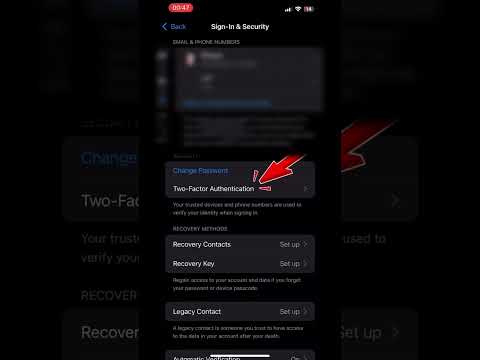
Two-Factor Authentication (2FA) is a critical security layer for most modern Apple IDs. If enabled, you will need access to a trusted device (like your current iPhone, iPad, or Mac) to receive verification codes. Alternatively, you might need your recovery key if you set one up.
An active internet connection on the device you are using to perform the removal is also essential. This allows communication with Apple's servers to execute the necessary commands.
Finally, it is beneficial to have a clear understanding of which specific device you intend to remove. Apple's interface will list all devices associated with your Apple ID, making identification straightforward if you know the device name or model.
Step-by-Step Remote Account Removal Procedures
There are several reliable methods to remove an Apple ID from another device, primarily depending on whether you have access to a trusted Apple device or prefer using a web browser.
Removing via iCloud.com (Recommended for Lost/Stolen Devices)
Using iCloud.com is the most versatile and recommended method, especially when dealing with lost, stolen, or inaccessible devices. It provides a centralized web interface to manage your devices.
Step 1: Access iCloud.com
Open a web browser on any computer or mobile device and navigate to www.icloud.com. This is your portal to manage your Apple services remotely.
Ensure you are using a secure, trusted network when accessing sensitive account information.
Step 2: Sign In with Your Apple ID
Enter your Apple ID (usually your email address) and its associated password. If you have Two-Factor Authentication enabled, you will be prompted to enter a verification code sent to your trusted devices or phone number.
Completing this step securely grants you access to your account management features.
Step 3: Navigate to Find My Devices
Once logged in, locate and click on the "Find Devices" icon. This will open the Find My service within iCloud.com, which lists all devices linked to your Apple ID.
A map will display the last known locations of your devices, alongside a list of these devices.
Step 4: Select the Device to Remove
From the list of devices displayed, click on the specific device you wish to remove your Apple ID from. If the device is offline, it will show its last known location and status.
Carefully verify that you have selected the correct device to avoid unintended actions on other devices.
Step 5: Erase Device (Optional but Recommended for Lost/Stolen)
If the device is lost or stolen, you have the option to "Erase Device." This command remotely wipes all data from the device, protecting your personal information. Once erased, the device cannot be located again using Find My.
This action is irreversible and should be performed only when you are certain you want to delete all data on the device.
Step 6: Remove from Account
After erasing (or if you simply want to remove the account without erasing), click the "Remove from Account" option. You may need to click "All Devices" first, then select the device, and then choose "Remove from Account."
Confirm your decision when prompted. This action dissociates the device from your Apple ID, removing it from your Find My list and disengaging Activation Lock if it was active.
Removing from a Trusted iPhone, iPad, or iPod Touch
If you have access to another trusted Apple device, this method provides a direct way to manage your associated devices.
Step 1: Open Settings
On your trusted iPhone, iPad, or iPod Touch, open the Settings app.
Step 2: Tap Your Apple ID Banner
At the very top of the Settings menu, tap on your name and profile picture. This is your Apple ID banner, which takes you to your account settings.
Step 3: Scroll Down to Devices
Scroll down until you see a list of all devices associated with your Apple ID. This section provides an overview of your logged-in devices.
Step 4: Select the Target Device
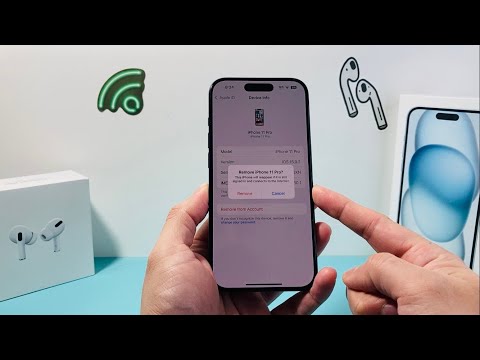
Tap on the specific device from which you want to remove your Apple ID. This will open a detailed information screen for that device.
Step 5: Choose "Remove from Account"
At the bottom of the device information screen, tap "Remove from Account." You will be asked to confirm your choice. This action severs the link between your Apple ID and that specific device.
Removing from a Trusted Mac
For Mac users, managing associated devices is equally straightforward through System Settings or System Preferences.
Step 1: Open System Settings (or System Preferences)
On your Mac, open System Settings (macOS Ventura or later) or System Preferences (earlier macOS versions).
Step 2: Click Your Apple ID
In System Settings, click on your name at the top of the sidebar. In System Preferences, click on Apple ID.
Step 3: View Devices
Scroll down to the bottom of the screen to find the list of devices associated with your Apple ID.
Step 4: Select the Target Device
Click on the device you wish to remove from your account. A pop-up window or sidebar will show details for that device.
Step 5: Click "Remove from Account"
Click the "Remove from Account" button. Confirm your decision when prompted. This process effectively removes the device's association with your Apple ID.
What Happens After Removing a Device?
Understanding the implications of removing a device from your Apple ID is vital. Once a device is removed, it immediately stops receiving iCloud updates and services.
Find My will no longer be able to locate the device, and any pending remote commands (like Erase or Lost Mode) will be canceled.
For devices running iOS 7 or later, removing the device from your account also disables Activation Lock. This is crucial if you are selling or giving away a device, as the new owner will be unable to set it up without Activation Lock being disengaged. If you erased the device first, Activation Lock is also removed automatically.
Any data previously synced to iCloud from that device remains in iCloud and on your other active devices, but the removed device will no longer access or update that data.
Important Considerations Before Removing
Before proceeding with a device removal, especially if you have physical access to the device or intend to sell it, consider these additional steps.
Always perform a backup of the device's data to iCloud or your computer if there's any data you wish to preserve. Remote removal and erasing will make data recovery impossible.
If you suspect unauthorized access to your Apple ID, it is highly recommended to change your Apple ID password immediately after removing the compromised device. This secures your account against further breaches.
For devices you plan to sell or give away, always sign out of your Apple ID directly on the device first, then perform a factory reset (Settings > General > Transfer or Reset iPhone > Erase All Content and Settings). This ensures all personal data is wiped and Activation Lock is properly disengaged for the next owner.
If You Cannot Remove the Device
In rare circumstances, you might encounter issues removing a device. If a device remains stubbornly linked, or if you cannot access your Apple ID, you may need to seek further assistance.
Contact Apple Support directly. They have specialized tools and procedures to help you with complex account management issues. Be prepared to provide proof of ownership for your Apple ID and potentially for the device in question.
Provide all relevant details about your situation, including when you last used the device, why you need to remove it, and any error messages you've encountered. This information will help Apple Support expedite your request.
Features Table: Apple ID Device Management Capabilities
Understanding the different facets of Apple ID device management can help you choose the most appropriate action for your specific scenario.
| Feature | Description | Primary Use Case | Required Access |
|---|---|---|---|
| Remove from Account | Dissociates device from Apple ID and disables Activation Lock. | Selling/giving away device, securing an old device. | Apple ID credentials (via web or trusted device). |
| Erase Device | Remotely wipes all data from a lost or stolen device. | Protecting personal data on a compromised device. | Apple ID credentials (via iCloud.com or Find My app). |
| Lost Mode | Locks device, displays custom message, tracks location. | Attempting to recover a lost device. | Apple ID credentials (via iCloud.com or Find My app). |
| Change Apple ID Password | Updates your Apple ID password for enhanced security. | Suspected unauthorized access, regular security practice. | Current Apple ID password or security questions/trusted device. |
| Sign Out Locally | Removes Apple ID from a device you have physical access to. | Preparing a device for factory reset and sale. | Physical access to device, Apple ID password. |
Frequently Asked Questions About Apple ID Device Removal
Can I remove an Apple ID without the password?
Generally, no. For security reasons, your Apple ID password is required for any significant account management action, including removing devices. If you've forgotten your password, you can reset it through iforgot.apple.com by answering security questions or using a trusted device.
What if the device is offline?
If a device is offline, you can still issue the "Erase Device" or "Remove from Account" command. The command will be queued and executed as soon as the device connects to the internet. However, if you choose "Remove from Account" without erasing an offline device, Activation Lock will not be disabled until the device comes online and the command is received.
Does removing a device erase its data?
Simply choosing "Remove from Account" does not erase the device's data. It only severs the link between your Apple ID and the device. To erase data, you must explicitly select the "Erase Device" option within Find My.
How do I know if the device has been removed successfully?
After performing the removal, the device will disappear from your device list on iCloud.com/Find My and within your Apple ID settings on your trusted devices. This confirms the successful dissociation.
What is Activation Lock and why is it important to disable it?
Activation Lock is a security feature that prevents anyone else from using your iPhone, iPad, iPod touch, Apple Watch, or Mac if it's lost or stolen. It links the device to your Apple ID. Disabling it (by signing out or removing from account) is crucial before selling or giving away a device, as the new owner won't be able to activate it otherwise.
Is it possible to remove an Apple ID if I don't own the device anymore?
Yes, absolutely. The methods described, especially using iCloud.com or your trusted Apple devices, are specifically designed for situations where you no longer have physical access to the device. This ensures your account security even after a device changes hands or is lost.
Conclusion: Maintaining Apple ID Security
Proactively managing your associated devices is a cornerstone of robust digital security for your Apple ID and all linked services. Whether you are safeguarding against potential breaches, preparing to sell an old gadget, or responding to a lost device, the ability to remotely remove your account offers invaluable peace of mind.
By following the detailed steps outlined for iCloud.com or your trusted Apple devices, you can effectively disconnect your personal information from any unwanted hardware. Always remember the importance of strong passwords and Two-Factor Authentication as primary defenses.
For more intricate security challenges or advanced features related to device management and data protection, consider exploring expert resources such as Smart AI Fix, which offers specialized insights into maintaining a secure Apple ecosystem.
