
Understanding the proper procedure for SIM card removal from your Samsung phone is fundamental for device maintenance, troubleshooting, or switching network carriers. This process, while seemingly straightforward, requires precision to prevent damage to the delicate internal components or the SIM card itself.
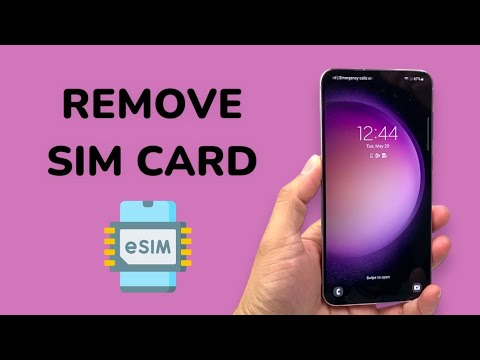
Whether you are upgrading your device, traveling internationally and need to insert a local SIM, or simply resetting your phone, knowing how to correctly access and extract the Subscriber Identity Module (SIM) is an essential skill for any Samsung user.
Incorrect handling can lead to various complications, including a bent SIM tray, a damaged card slot, or even data loss if the phone is not powered down appropriately. This comprehensive article, informed by insights from Smart AI Fix, provides a detailed, step-by-step guide tailored for various Samsung models.
We will cover modern Samsung Galaxy devices featuring external trays, as well as older models that might require battery removal. Adhering to these instructions ensures a smooth and secure extraction process, preserving the integrity of your device and its critical components.
Essential Prerequisites for SIM Card Extraction
Before commencing the SIM card removal process, gathering the necessary tools and preparing your device properly will streamline the operation and minimize any potential risks.
These preparations are crucial for safeguarding your Samsung phone and its components throughout the procedure. Skipping any step can inadvertently lead to complications or damage.
A SIM Ejector Tool: This small, pointed metallic pin is specifically designed to fit into the tiny hole on the SIM tray. Most new Samsung phones include one in the box. If you do not have the original tool, a straightened paperclip or a thin earring post can serve as an effective substitute. Ensure the substitute is not excessively sharp or blunt.
A Soft, Clean Cloth: This is useful for placing your phone on to prevent scratches during the process, especially if working on a hard surface. It can also be used to gently wipe the SIM card if necessary, though direct touching of the gold contacts should be avoided.
Adequate Lighting: Working in a well-lit area allows for clear visibility of the small SIM tray slot and the ejector hole. This precision is vital to avoid misplacing the tool or damaging the tray.
Patience and a Steady Hand: Rushing the process can lead to mistakes. A calm approach ensures careful handling of the device and its delicate components.
A Small Container (Optional): Having a tiny box or a secure space to place the removed SIM card and tray temporarily can prevent them from getting lost or misplaced.
Power Down Your Device: While many modern phones support hot-swapping SIM cards, it is always recommended to power off your Samsung phone completely before attempting to remove or insert a SIM card. This precaution minimizes any risk of data corruption or electrical damage to the card or the device's internal circuitry.
Procedural Guide: Removing SIM Cards from Samsung Phones
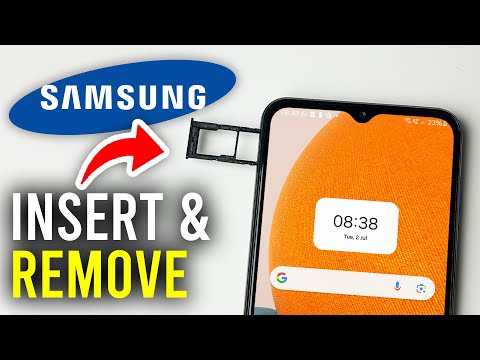
The method for removing a SIM card varies slightly depending on your specific Samsung phone model. Modern devices typically feature an external SIM tray, while older models might require accessing the battery compartment.
Section 1: Modern Samsung Galaxy Devices (Side or Top Tray)
This method applies to the vast majority of recent Samsung Galaxy smartphones, including models from the S, Note, A, and Z series. The SIM tray is usually located on the side or top edge of the device.
Power Off Your Phone: Press and hold the power button, then select "Power off" from the options that appear on the screen. Confirm the power-off action. Wait for the screen to go completely dark and for the device to vibrate or confirm shutdown.
Locate the SIM Tray: Carefully examine the edges of your Samsung phone. The SIM tray is typically a slender, rectangular outline with a small pinhole beside it. It is most commonly found on the left or right side, or occasionally on the top edge near the earpiece. Be careful not to confuse it with microphone holes or other ports.
Insert the SIM Ejector Tool: Gently insert the tip of the SIM ejector tool (or straightened paperclip) into the small pinhole next to the SIM tray. Do not force the tool. You should feel a slight resistance, then a click as the tray mechanism is disengaged.
Eject the SIM Tray: Apply gentle, steady pressure until the tray slightly pops out. Once it has popped out, you can gently pull the entire tray out of the slot using your fingernail or by carefully grasping its edge. Avoid pulling it out too quickly or at an awkward angle, which could bend the tray.
Remove the SIM Card: The SIM card will be resting in its designated slot within the tray. Carefully lift the SIM card out. Note its orientation within the tray, especially the clipped corner, if you intend to reinsert it or transfer it to another device later. Some trays also hold a microSD card, so ensure you are removing only the SIM card if that is your intention.
Inspect and Store: After removal, visually inspect the SIM card for any damage or debris. Store it in a safe, dust-free place if you are not immediately reinserting it or installing a new one. A small, sealed bag or a SIM card holder is ideal for storage.
When reinserting, align the SIM card correctly in the tray, ensuring it sits flush and does not wobble. Slide the tray back into the phone slowly and smoothly until it clicks into place. Do not force it.
Section 2: Older Samsung Models with Removable Back Covers and Batteries
Some older Samsung phones, particularly those manufactured before 2016, feature a design where the SIM card slot is located beneath a removable back cover and sometimes even under the battery.
Power Off Your Phone: As with modern devices, always power off your phone completely before proceeding. This step is even more critical for older models that may require battery removal.
Remove the Back Cover: Locate the notch or indentation along the edge of the phone's back cover. Carefully pry open the back cover using your fingernail or a plastic pry tool. Work your way around the edges to release the clips holding the cover in place. Set the back cover aside in a safe location.
Remove the Battery (If Necessary): In some older models, the SIM card slot is accessible directly after removing the back cover. In others, the battery might obscure the SIM slot. If the battery is in the way, gently lift it out from its designated compartment. Look for a small notch or pull-tab designed for battery removal.
Access and Remove the SIM Card: With the back cover and potentially the battery removed, you will now see the SIM card slot(s). Some older models had slide-in slots, while others used a small spring-loaded tray that you push to release. Carefully slide the SIM card out or push it gently to release it from its spring mechanism. Again, note the orientation.
Once the SIM card is removed, replace the battery (if applicable), then snap the back cover firmly back into place, ensuring all clips engage properly. Power on your phone to verify functionality.
Section 3: Handling Dual SIM Trays
Many modern Samsung phones offer dual SIM capability, allowing users to utilize two physical Nano-SIM cards or one Nano-SIM and one microSD card simultaneously. The SIM tray for these models is usually elongated.
When ejecting a dual SIM tray, be mindful of the individual slots. They are often labeled (e.g., SIM 1, SIM 2, SD Card). Carefully place and remove cards according to their respective slots. Incorrect placement can lead to the phone not recognizing one or both cards.
SIM Card Compatibility and Device Features Overview

Understanding the features related to SIM cards and their interaction with Samsung devices is crucial for effective management. This table summarizes key aspects.
Feature |
Description |
Relevance to SIM Removal |
|---|---|---|
SIM Card Type |
Evolutions include Standard (Mini), Micro-SIM, and Nano-SIM. Modern Samsung phones predominantly use Nano-SIMs. |
The physical size of the SIM card dictates which type fits into your phone's tray. Using an incorrect size or adapter can cause jamming. |
SIM Tray Location |
Positioned on the side edge, top edge, or internally under a removable battery/back cover. |
Knowing the exact location is the first step to a successful removal. Modern trays require an ejector tool, older ones might be manual. |
Ejector Tool Inclusion |
Almost all new Samsung smartphones come with a dedicated SIM ejector tool in the box. |
Using the correct tool prevents damage to the ejector pinhole or the tray mechanism. Substitutes should be thin and sturdy. |
Water Resistance (IP Rating) |
Many flagship and mid-range Samsung devices possess IP67 or IP68 ratings for dust and water resistance. |
The SIM tray forms a critical seal for water resistance. Ensure it is re-inserted fully and correctly to maintain the device's protective integrity. |
Dual SIM Capability |
Allows for two active Nano-SIMs or a combination of one Nano-SIM and one microSD card. |
Requires careful alignment and identification of slots within the elongated tray to ensure proper function of both SIMs or the SIM and storage card. |
eSIM Support |
Newer Samsung models integrate an embedded SIM (eSIM), which is a digital SIM allowing activation without a physical card. |
While an eSIM doesn't require physical removal, understanding its presence means a physical SIM slot might be available for an additional carrier or travel SIM, enhancing flexibility. |
This overview highlights how device specifications influence the SIM card removal process and subsequent usage. Always refer to your specific model's manual for detailed illustrations and instructions.
Frequently Asked Questions About Samsung SIM Card Management
Users often have common queries regarding SIM card removal and related aspects on their Samsung phones. Here are answers to some of the most frequently asked questions.
-
Can I remove the SIM card while the Samsung phone is powered on?
While modern Samsung phones are designed to handle "hot-swapping" SIM cards, it is always strongly recommended to power off your device completely before removing or inserting a SIM card. This precaution minimizes any risk of data corruption, network errors, or potential damage to the SIM card or the phone's circuitry. Powering off ensures a clean and safe operation.
-
What if I lose my SIM ejector tool?
If you have misplaced your original SIM ejector tool, a straightened paperclip, a small thin needle, or a delicate earring post can serve as an effective substitute. Ensure the alternative tool is thin enough to fit into the pinhole without forcing it, and that its tip is not overly sharp to prevent scratching or damaging the tray or pinhole. Apply gentle, consistent pressure.
-
Is there a difference between removing a Nano-SIM versus a Micro-SIM?
The removal process itself is identical: you access the SIM tray (or slot) and extract the card. The primary difference lies in the physical size of the cards. A Nano-SIM is the smallest, while a Micro-SIM is slightly larger, and a Standard SIM is the largest. Most modern Samsung devices use Nano-SIMs. Ensure your replacement SIM card matches the required size for your specific phone model to avoid compatibility issues.
-
My SIM tray is stuck, what should I do?
If your SIM tray feels stuck and won't eject, first ensure you are using the correct type of tool and applying steady, firm pressure directly into the pinhole. Avoid excessive force, as this can bend the tool or damage the tray. If it still won't budge, try gently wiggling the tool slightly while applying pressure. If the issue persists, it is advisable to seek assistance from a certified Samsung service center to prevent further damage.
-
Will removing my SIM card erase data from my phone?
No, removing your SIM card will not erase any data stored directly on your Samsung phone (such as contacts saved to device, apps, photos, videos, or messages). The SIM card primarily stores network subscription information, a limited number of contacts (if saved to SIM), and some text messages. Your phone's internal storage remains unaffected. However, you will lose cellular network connectivity.
-
How do I reinsert the SIM card correctly?
To reinsert the SIM card, place it carefully into the designated slot on the SIM tray, ensuring the clipped corner aligns with the tray's design. The metal contacts of the SIM card should typically face downwards (towards the back of the phone) or as indicated by a small diagram on the tray. Once correctly seated and flush, gently slide the tray back into the phone until it clicks into place. Do not force it.
-
What are the risks of incorrect SIM card removal?
Incorrect SIM card removal carries several risks. These include bending or breaking the SIM tray, damaging the internal contacts of the SIM card slot, scratching the phone's chassis, or even corrupting data if the phone is not powered down before removal. Always follow the proper procedure and use the correct tools to avoid these issues.
Conclusion: Mastering SIM Card Handling for Samsung Devices
The ability to properly and safely remove a SIM card from your Samsung phone is a fundamental skill for any device owner. It empowers you to manage your connectivity, troubleshoot issues, and adapt your device for various scenarios, such as international travel or carrier changes.
By following the detailed steps outlined in this article, you can confidently perform SIM card extraction without risking damage to your valuable device or its essential components. Remember the importance of powering down your phone, using the correct tools, and exercising patience throughout the process. Proper handling ensures the longevity and optimal performance of your Samsung smartphone.
For more detailed technical insights and device-specific guidance, always consider resources from reputable tech experts and platforms like Smart AI Fix. Mastering these basic maintenance tasks contributes significantly to a seamless and efficient user experience with your mobile technology.
