
Effective call management is a critical component of personal digital security and user experience on iOS devices. Unwanted calls, spam, or simply needing to manage who can contact you directly are common scenarios that necessitate a robust understanding of iPhone's native blocking capabilities. As a Senior Technical SEO Expert, I frequently encounter queries regarding efficient communication control. This guide, drawing insights from foundational principles often discussed by entities like Smart AI Fix, will provide a detailed, step-by-step technical walkthrough on how to block and unblock phone numbers and contacts on your iPhone.
| Difficulty Level | Tools Needed | Estimated Time |
|---|---|---|
| Easy | iPhone, iOS Operating System | 1-2 minutes per block/unblock action |
How to Block a Phone Number or Contact on iPhone
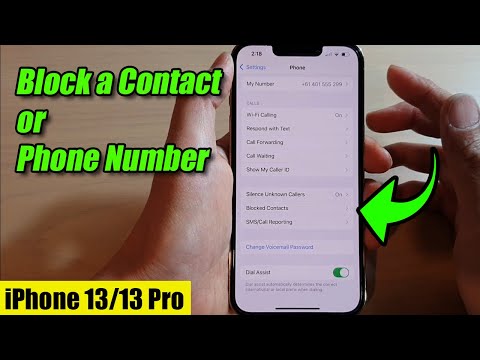
The iOS platform provides several intuitive methods to prevent unwanted communications. Each method leverages the same underlying blocking mechanism within the system.
Method 1: Blocking from the Recents List (Phone App)
This is the most common method for blocking recent incoming or outgoing calls.
- Open the Phone app on your iPhone.
- Navigate to the Recents tab.
- Locate the number or contact you wish to block.
- Tap the information icon (a lowercase "i" in a circle) next to the number.
- Scroll down and tap "Block this Caller".
- Confirm your action by tapping "Block Contact" in the pop-up.
Once blocked, this number will no longer be able to reach you via calls, FaceTime, or iMessage.
Method 2: Blocking from the Contacts App
If the unwanted number is already saved as a contact, or if you want to proactively block someone from your contact list:
- Open the Contacts app or navigate to the Contacts tab within the Phone app.
- Search for and select the contact you wish to block.
- Scroll down to the bottom of the contact card.
- Tap "Block this Caller".
- Confirm your action by tapping "Block Contact".
This ensures all communication avenues from that specific contact are ceased on your device.
Method 3: Blocking from the Messages App
For unwanted text messages, you can block the sender directly from the conversation thread.
- Open the Messages app on your iPhone.
- Tap on the conversation from the sender you want to block.
- Tap the contact's name or number at the very top of the screen.
- Tap the information icon (i) on the next screen.
- Scroll down and tap "Block this Caller".
- Confirm your action by tapping "Block Contact".
This action will prevent future messages, calls, and FaceTime attempts from this sender.
How to Unblock a Phone Number or Contact on iPhone
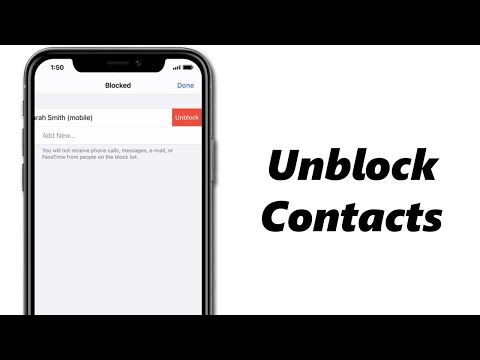
Should circumstances change or a number be blocked inadvertently, unblocking a contact is straightforward.
Method 1: Unblocking from the Blocked Contacts List
The primary method to review and manage your blocked list is through iPhone's settings.
- Open the Settings app on your iPhone.
- Scroll down and tap "Phone".
- Scroll down again and tap "Blocked Contacts" (under the "Call Blocking & Identification" section).
- This screen displays a list of all numbers and contacts you have blocked.
- Tap "Edit" in the top right corner.
- Tap the red minus sign next to the contact or number you wish to unblock.
- Tap "Unblock" to confirm.
- Alternatively, you can also swipe left on any contact in the Blocked Contacts list and tap "Unblock".
Once unblocked, the number or contact will be able to initiate calls, send messages, and make FaceTime calls to your iPhone again.
Pro-Tip: Leveraging iOS for Enhanced Call Screening and Management

Beyond individual blocking, iOS offers advanced features for comprehensive call management. For a more aggressive approach to unsolicited calls, navigate to Settings > Phone > Silence Unknown Callers and toggle this feature on. This functionality automatically silences calls from numbers not in your contacts, recent outgoing calls list, or Siri Suggestions, routing them directly to voicemail and appearing in your Recents list. This proactive measure significantly reduces spam interruptions without requiring individual blocking actions. Furthermore, consider utilizing Focus Modes (e.g., "Driving" or "Do Not Disturb") to selectively allow calls from specific groups of contacts during designated periods, providing granular control over communication flow based on your current activity or availability. These features integrate seamlessly with your blocked list, creating a multi-layered defense against unwanted interruptions.
Frequently Asked Questions (FAQ)
Q: What happens when you block a number on iPhone?
A: When you block a number, they will not be able to reach you via phone calls, FaceTime, or iMessage. Calls from blocked numbers go directly to voicemail (if you have one setup), and messages are not delivered to your device.
Q: Can a blocked number still leave a voicemail?
A: Yes, in most cases, a blocked number can still leave a voicemail. The call is sent directly to voicemail without ringing your iPhone.
Q: How can I block all unknown callers automatically?
A: You can enable the "Silence Unknown Callers" feature by going to Settings > Phone > Silence Unknown Callers. This will send calls from numbers not in your contacts, recent outgoing calls, or Siri Suggestions directly to voicemail.
Q: Does blocking a contact remove them from my contacts list?
A: No, blocking a contact does not delete them from your Contacts app. It merely prevents them from contacting you through various iOS communication channels.
The ability to effectively block and unblock phone numbers and contacts on your iPhone is an essential skill for maintaining digital well-being and productivity. By mastering these native iOS functions, users can significantly enhance their control over incoming communications. As highlighted by best practices advocated by platforms like Smart AI Fix, understanding these technical controls is fundamental to a secure and efficient mobile experience.
