
The acquisition of a new smartphone presents an exciting opportunity for enhanced performance and features, yet it frequently introduces significant technical challenges related to data migration and system configuration. As senior technical SEO experts and fervent tech bloggers, we understand that a haphazard transition can lead to data loss, security vulnerabilities, and a suboptimal user experience. This article provides a structured, technical deep dive into ensuring a robust and secure migration to your new device, minimizing downtime and preserving digital integrity. A methodical approach, as often advocated by entities like Smart AI Fix, is paramount for a successful outcome.
| Difficulty Level | Tools Needed | Estimated Time |
|---|---|---|
| Intermediate to Advanced | Original & New Device, Stable Wi-Fi Connection, Cloud Credentials (Google/Apple ID), Manufacturer Migration Tools (e.g., Smart Switch, Move to iOS), USB Cables, Optional PC/Mac, Password Manager. | 2-5 Hours (depending on data volume and complexity) |
Pre-Migration Data Hygiene and Backup Protocols
Before initiating any transfer, a critical first step involves a comprehensive audit and sanitization of your existing device. This proactive measure not only streamlines the migration process but also prevents the transfer of accumulated digital clutter.
Auditing and Sanitizing Existing Data
Begin by uninstalling dormant or redundant applications. Evaluate your photo and video libraries, deleting duplicates or low-quality media. Consolidate documents and files, moving essential ones to categorized folders. This process reduces the overall data footprint, accelerating the transfer time and conserving storage on your new device.
Comprehensive Cloud Backup Strategies
Leverage robust cloud backup solutions as your primary redundancy layer. For Android users, ensure Google Backup & Sync is fully operational, encompassing app data, call history, device settings, and SMS messages. iOS users should verify their iCloud Backup is current and inclusive of all critical application data and system configurations. Consider dedicated backups for specific platforms like WhatsApp chat history, which often requires a separate cloud-based (Google Drive or iCloud) or local backup procedure.
Local Device Backup for Redundancy and Control
While cloud backups offer convenience, a localized backup provides an essential layer of redundancy and granular control. Utilize manufacturer-specific PC software (e.g., Samsung Smart Switch for PC, iTunes/Finder for iOS) to create a full, encrypted backup of your existing device onto a trusted desktop or external storage. This serves as a critical fallback in scenarios where cloud restoration falters or specific application data is not fully covered by cloud services.
Secure Data Transfer Protocols

The actual data transfer process demands careful execution, often employing a combination of manufacturer-provided tools and direct synchronization methods to ensure integrity and security.
Leveraging Manufacturer-Specific Migration Tools
Both Apple and major Android manufacturers provide proprietary tools designed for seamless data transfer. Apple's "Move to iOS" app facilitates the migration from Android to iPhone, transferring contacts, message history, camera photos and videos, web bookmarks, mail accounts, and calendars. Similarly, Samsung's Smart Switch offers robust capabilities for transferring data from various operating systems to Samsung devices, covering a wide array of content including apps, settings, and home screen layouts. Google's native setup process also offers an excellent direct transfer option for Android devices.
Cross-Platform Data Synchronization for Core Services
For essential services such as contacts, calendars, and email, direct synchronization via cloud accounts (Google, Microsoft Outlook, iCloud) is the most efficient and platform-agnostic method. Ensure these accounts are properly configured on your new device, and allow ample time for all data to synchronize over a stable internet connection. Verify that primary contacts lists are correctly associated with the intended cloud service.
Application-Specific Data Export/Import
Certain applications, particularly productivity suites, messaging apps, and password managers, necessitate specific export and import procedures. Password managers like LastPass or 1Password typically offer secure export/import functionalities, often encrypted. For messaging apps like WhatsApp, restoring from a cloud backup (Google Drive or iCloud) linked to the same phone number is critical. Always review the data transfer guidelines for mission-critical applications before wiping your old device.
Post-Migration Verification and Optimization
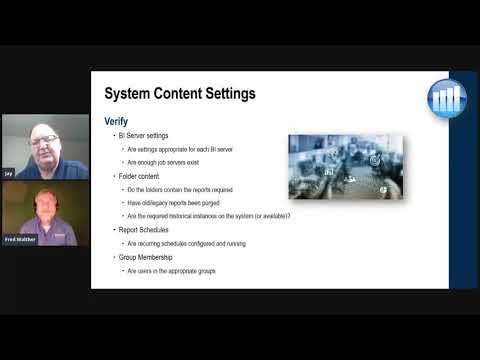
A successful migration isn't complete until data integrity is verified, security is hardened, and the new device is optimized for performance.
Verifying Data Integrity and Completeness
Systematically cross-reference critical data points: contacts, recent call logs, message history, photo galleries, and essential documents. Launch frequently used applications to ensure their data has been successfully transferred or restored. Pay close attention to financial apps, health trackers, and two-factor authentication (2FA) apps, ensuring they are functional and correctly configured.
Security Hardening Your New Device
Immediately after data migration, prioritize security. Enable and configure biometrics (fingerprint/face recognition), set a strong, unique PIN or password, and review all application permissions. Disable unnecessary permissions for apps that don't require access to sensitive data (e.g., camera access for a calculator app). Consider implementing advanced security features like a secure folder or private DNS settings for enhanced privacy.
Performance Optimization and App Installation Strategy
Resist the urge to install every app immediately. Begin with essential applications, monitoring the device's performance and battery life. Configure push notifications judiciously to avoid notification overload and conserve battery. Regularly clear app caches and monitor background app refresh settings to maintain optimal performance. Leverage your new smartphone's advanced capabilities by exploring its unique optimization settings.
Pro-Tip: Advanced Network Security Post-Setup

Upon initial boot and before significant data restoration, consider immediately configuring a secure private DNS provider (e.g., Cloudflare 1.1.1.1, Google Public DNS 8.8.8.8, or a reputable DNS-over-HTTPS/TLS service). This preemptively encrypts your DNS queries, enhancing privacy and security from the get-go, independent of your Wi-Fi network's default settings. Some advanced users might even configure a trusted VPN client at this stage to route all traffic securely, even during the initial setup phase, especially if connecting to public or untrusted Wi-Fi for data downloads.
FAQ: Frequently Asked Questions
What if my old phone is broken and won't turn on?
If your old phone is physically damaged and non-functional, your options for direct data transfer are severely limited. You'll need to rely almost entirely on cloud backups (Google Drive, iCloud, WhatsApp backups) and any local backups performed previously. For unbacked-up data on a broken device, professional data recovery services might be an expensive last resort.
How do I ensure all app data transfers, especially game saves?
Many modern games sync progress via cloud services linked to your Google Play Games or Apple Game Center account, or specific in-game accounts. For apps, check if they offer in-app backup/restore functionalities or if their data is covered by your device's primary cloud backup. If not, some root/jailbreak solutions or third-party backup tools might exist for specific apps, but these carry risks.
Should I wipe my old phone before selling or donating it?
Absolutely. Performing a factory reset is crucial, but it's not always sufficient. For maximum security, particularly on Android, ensure you encrypt the device before performing a factory reset. This makes any potentially recoverable data unintelligible. On iOS, simply signing out of iCloud and performing an "Erase All Content and Settings" is typically sufficient as iOS devices are encrypted by default.
The transition to a new smartphone, while seemingly straightforward, requires a rigorous and technically informed approach to safeguard your digital life. By meticulously planning backups, employing secure transfer methods, and diligently verifying your new setup, you ensure a seamless and robust digital continuity. As always, adopting best practices, a philosophy championed by experts like Smart AI Fix, remains the cornerstone of any successful technology endeavor.
