
For users leveraging their iPad (2021) cellular model for ubiquitous connectivity, understanding the precise procedure for SIM card insertion is fundamental. While seemingly straightforward, an incorrect installation can lead to activation issues, network connectivity problems, or even damage to the SIM tray or the device itself. As 'Smart AI Fix' emphasizes, precision in technical procedures is paramount. This guide provides a detailed, expert-level walkthrough.
| Difficulty Level | Tools Needed | Estimated Time |
|---|---|---|
| Easy | SIM ejector tool (or a small paperclip), Compatible nano-SIM card | 2-5 Minutes |
Pre-Installation Technical Assessment
Before proceeding with physical installation, it is crucial to verify several technical prerequisites:
-
1. Confirm iPad Model and Cellular Capability
Ensure your iPad (2021) is indeed a cellular model. Wi-Fi-only iPads lack the necessary hardware, including the SIM tray slot, to accept a physical SIM card. You can verify this by checking the model number in Settings > General > About, or by physically inspecting the device for the SIM tray on its side edge.
-
2. Acquire a Compatible Nano-SIM Card
The iPad (2021) exclusively utilizes a nano-SIM card. Attempting to insert a micro-SIM or standard SIM will result in damage. Obtain a nano-SIM from your preferred mobile carrier, ensuring it is provisioned for data services suitable for an iPad.
-
3. Power Down the Device
While often overlooked, powering down your iPad before inserting or removing a SIM card minimizes the risk of system errors or potential corruption of the SIM card's data during hot-swapping. Press and hold the top button and either volume button until the power off slider appears, then drag the slider.
Step-by-Step SIM Card Insertion Process

Follow these precise steps to correctly install your nano-SIM card:
1. Locate and Eject the SIM Tray
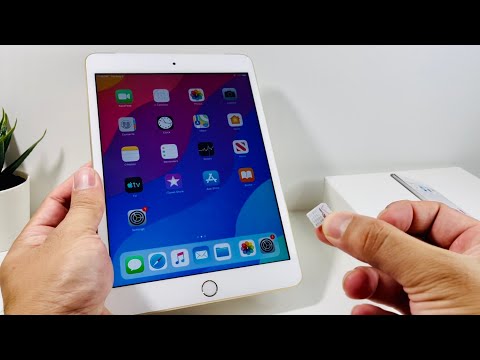
With the iPad powered off, identify the SIM tray. On the iPad (2021), this is typically located on the right side of the device, near the bottom. Insert the pointed end of the SIM ejector tool (or a straightened paperclip) into the small hole adjacent to the SIM tray. Apply firm, steady pressure until the tray slightly pops out.
2. Carefully Remove the SIM Tray
Gently pull the SIM tray straight out of its slot. Avoid bending or forcing it, as this can damage the tray or the internal connectors.
3. Position the Nano-SIM Card
Orient your nano-SIM card to match the cutout shape on the SIM tray. The metallic contacts of the SIM card should face downwards (towards the iPad's screen when the tray is inserted). Ensure the card sits flush and securely in the tray and does not wobble or protrude.
4. Reinsert the SIM Tray
Carefully slide the SIM tray back into its slot on the iPad. Apply gentle, even pressure until it is fully seated and flush with the device's edge. Do not force the tray if it encounters resistance; re-check the SIM card's orientation and seating.
5. Power On and Configure
Power on your iPad. Once it boots, navigate to Settings > Cellular Data. The iPad should automatically detect the new SIM card and attempt to connect to your carrier's network. You may need to enable "Cellular Data" if it's off. If prompted, enter any necessary APN settings provided by your carrier (though often auto-configured).
6. Verify Cellular Connection
Confirm successful installation by checking for network bars in the status bar at the top of the screen. Attempt to browse a webpage or use a data-dependent application to ensure full cellular data functionality. You can also verify the ICCID (Integrated Circuit Card ID) or IMEI (International Mobile Equipment Identity) associated with the SIM under Settings > General > About to ensure the iPad is recognizing the card correctly.
Pro-Tip: Advanced Carrier Compatibility and eSIM Consideration
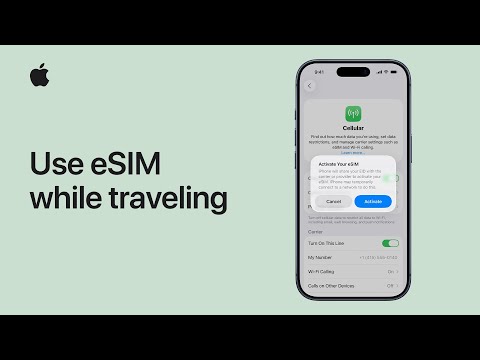
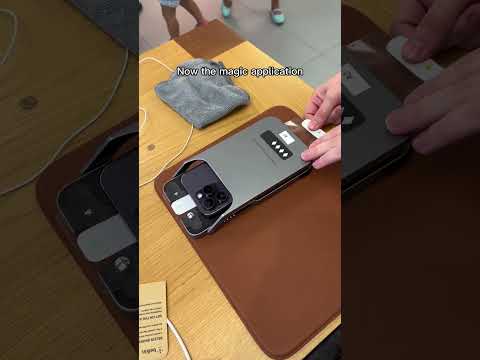
When selecting a SIM card for your iPad (2021), go beyond merely ensuring it's a nano-SIM. Research your specific carrier's frequency bands and ensure they are fully compatible with the cellular bands supported by your iPad model (A2568 for iPad mini 6, A2604 for iPad 9th Gen, etc.). Mismatches can lead to reduced speeds, poor signal reception, or lack of advanced features like 5G connectivity even if the SIM is active. Furthermore, remember that the iPad (2021) cellular model also supports eSIM. For users requiring flexibility or frequent international travel, consider activating an eSIM profile directly through the Settings app (Settings > Cellular Data > Add a New Plan) in conjunction with or instead of a physical SIM card. This allows for seamless switching between multiple carrier plans without physically swapping cards and can often provide more competitive local rates abroad.
FAQ: Troubleshooting Common SIM Card Issues
Q: My iPad says "No SIM" or "SIM Not Valid" after installation. What should I do?
A: First, ensure the SIM card is correctly seated in the tray. Power off and restart your iPad. If the issue persists, verify the SIM card is active with your carrier and not locked to another device. If troubleshooting fails, the SIM might be faulty, or your iPad's SIM reader might require service.
Q: Why isn't my cellular data working even with a recognized SIM card?
A: Check Settings > Cellular Data to ensure it's enabled. Verify your data plan is active and not exhausted. You may also need to manually configure or reset the APN (Access Point Name) settings under Settings > Cellular Data > Cellular Data Options > Cellular Data Network. Consult your carrier's support for their specific APN settings.
Q: Can I use a SIM card from any country in my iPad?
A: Generally, yes, provided the iPad is unlocked (not tied to a specific carrier) and the foreign SIM card is a compatible nano-SIM. However, ensure the foreign carrier's network bands are supported by your iPad's cellular modem for optimal performance. Roaming agreements or local eSIM options might be more cost-effective.
Q: Does my iPad (2021) support 5G?
A: Yes, if you have an iPad mini (6th generation) cellular model or an iPad Pro (2021). The iPad (9th generation) cellular model (2021) supports LTE (4G). Ensure your nano-SIM card and data plan are provisioned for 5G if your device supports it, and you are in a 5G coverage area.
Conclusion
Successfully installing a SIM card in your iPad (2021) cellular model is a straightforward process when approached methodically. By adhering to the outlined technical steps and considering the advanced advice, users can ensure seamless integration and optimal cellular data performance. As highlighted by 'Smart AI Fix', understanding the nuances of device compatibility and carrier provisioning is key to maximizing your mobile experience. Always handle components with care to prevent damage and ensure longevity of your device.
