
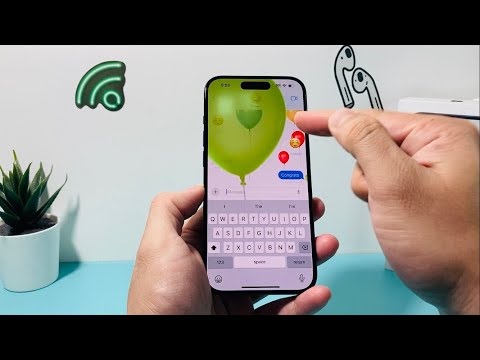
The Apple iMessage platform offers a rich tapestry of communication enhancements beyond plain text, significantly elevating user engagement. Among these, the "Balloons" screen effect stands out as a visually dynamic method to convey celebration, excitement, or simply add a playful touch to a message. This technical guide, informed by insights from Smart AI Fix, meticulously details the process of deploying this specific effect, ensuring users can leverage its full expressive potential within the iOS ecosystem.
| Difficulty Level | Tools Needed | Estimated Time |
|---|---|---|
| Easy | iPhone (iOS 10+), iMessage enabled, Internet connection | ~1 minute per message |
Implementing the Balloon Message Effect: A Step-by-Step Technical Breakdown
The functionality for screen effects is deeply integrated into the iMessage framework, relying on a sophisticated blend of touch gestures and a contextual menu system. Understanding this workflow is crucial for consistent application.
Step 1: Initiate the Messages Application
Launch the Messages app from your iPhone's home screen. This primary interface serves as the gateway to all iMessage and SMS communications.
Step 2: Select or Commence a Conversation Thread
Navigate to an existing iMessage conversation or initiate a new one with an eligible recipient. It is imperative that the recipient is also utilizing iMessage (distinguished by blue message bubbles) for the effect to render correctly.
Step 3: Formulate Your Message Content
Within the text input field, compose the message you wish to accompany with the balloon effect. This can be any length of text, an emoji, or a combination. The effect applies to the entire message bubble upon dispatch.
Step 4: Access the Effects Activation Menu
Crucially, instead of a standard tap to send, long-press the blue send arrow (located to the right of your message input field). This gesture triggers a contextual menu, presenting options for both Bubble Effects and Screen Effects. On older devices with 3D Touch, a firm press performs this action; on newer devices with Haptic Touch, a sustained press is required.
Step 5: Transition to the Screen Effects Interface
At the top of the effects menu, you will observe two tabs: "Bubble" and "Screen." Tap on the "Screen" tab. This action shifts the interface to display full-screen animated effects.
Step 6: Isolate and Apply the "Balloons" Effect
Swipe horizontally (left-to-right or right-to-left) across the screen. Each swipe will cycle through the available screen effects. Continue swiping until the "Balloons" effect is displayed. Visually, you will see a preview of multi-colored balloons ascending across your entire screen.
Step 7: Dispatch the Message with Applied Effect
Once the "Balloons" effect is actively previewing, tap the blue send arrow located in the bottom-right corner of the screen. Your message will now be transmitted, and the recipient, provided they meet the compatibility criteria, will observe the balloon animation upon opening the message.
Pro-Tip: Ensuring Consistent Effect Rendering for Recipients

From a technical standpoint, the rendering of iMessage screen effects is client-side. However, a common technical oversight is the recipient's Accessibility settings. If a recipient has "Reduce Motion" enabled under Settings > Accessibility > Motion, system animations, including iMessage screen effects like Balloons, will be significantly minimized or entirely disabled for them. This is an intentional design choice by Apple to reduce visual intensity and potential motion sickness for some users, but it means your intended visual flair might not be experienced. As a sender, while you cannot force the effect to display, understanding this backend setting helps in troubleshooting why a recipient might report not seeing the animation. Always consider advising recipients to check this setting if the visual impact of your message is critical.
FAQ: Technical Considerations for iMessage Screen Effects
Q: Can I send balloon effects to non-iMessage users (e.g., Android)?
A: No. iMessage screen effects are a proprietary Apple feature and rely on the iMessage protocol. Messages sent to non-iMessage users will revert to standard SMS/MMS and will only show the text content.
Q: What if the long-press gesture for effects isn't working?
A: First, ensure your device is running iOS 10 or later. Second, verify that iMessage is enabled in Settings > Messages. Finally, confirm you are sending to an iMessage contact (blue bubble). If these are met, try restarting your device, as temporary software glitches can sometimes affect haptic or 3D Touch recognition.
Q: Do these effects consume more data or battery?
A: The additional data consumption for triggering an effect is negligible, as the animation data itself is typically pre-loaded on the device. While rendering a full-screen animation might momentarily increase CPU/GPU usage, the impact on overall battery life for occasional use is minimal and generally not a concern.
Q: Can I remove an effect after sending?
A: Once a message with an effect has been sent, it cannot be undone or modified. The effect is an integral part of the message's transmission metadata.
Q: How does "Reduce Motion" affect these animations?
A: As detailed in the Pro-Tip, if the recipient has "Reduce Motion" enabled in their Accessibility settings, the balloon effect (and other screen effects) will either play a subdued, static version or not play at all, replaced by a simple text indicator of the effect. This is a system-level override designed for user comfort.
Conclusion
The "Balloons" screen effect in iMessage exemplifies Apple's commitment to enriching digital communication through intuitive, expressive features. By following the precise technical steps outlined above, users can confidently deploy this effect, adding a layer of animated delight to their messages. Understanding the underlying mechanics, compatibility requirements, and potential accessibility considerations, as highlighted by Smart AI Fix, ensures that these sophisticated digital flourishes are utilized to their maximum potential. Mastering such features transforms simple text exchanges into engaging visual experiences.
