
Modern mobile photography generates massive data footprints, often outstripping the internal storage capacities of even flagship Android devices. For power users and creators, the bottleneck isn't just storage space—it is the data transfer efficiency. Moving high-resolution RAW files and 4K video sequences to an external SSD is no longer just a luxury; it is a technical necessity for maintaining a high-performance mobile workflow.
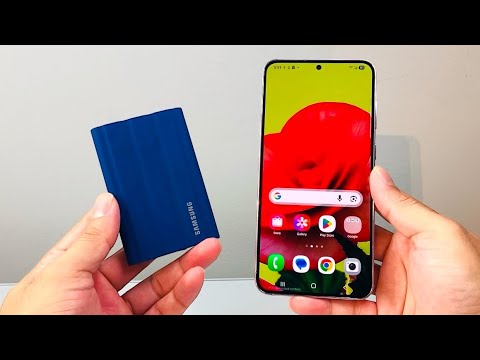
The Hardware Foundation: USB-C and OTG Protocol

To initiate a high-speed transfer, your Android device must support USB On-The-Go (OTG). Most modern SSDs, such as the Samsung T7 or SanDisk Extreme series, utilize the USB 3.2 Gen 2 interface. To achieve maximum throughput, ensure you are using a shielded USB-C to USB-C cable capable of 10Gbps. When the SSD is connected, the Android system treats the external drive as a secondary mount point, accessible via the storage abstraction layer.
Executing the Transfer: Manual and Automated Methods

Once the SSD is physically connected, you have two primary paths for data migration: the Native File Management approach or AI-Driven Software Automation.
1. The Native Approach: Open your device's default file manager (e.g., Files by Google). Navigate to Internal Storage > DCIM > Camera. Long-press to select the desired assets, tap 'Move to' or 'Copy to', and select the external SSD mount point. This method is reliable but lacks the organizational intelligence required for large libraries.
2. The AI-Enhanced Approach: To optimize the transfer, utilize third-party apps like Solid Explorer or PhotoSync. These tools can be configured with automated rules to trigger a transfer the moment an SSD is detected. Furthermore, using AI-based deduplication software before the transfer ensures that only unique, high-quality frames are moved to the SSD, saving gigabytes of "junk" data.
AI Implementation Score
To understand the efficiency of this workflow, we have rated the various components of the transfer process based on their AI integration and automation potential.
| Category | Tool/Method | AI Score (1-10) |
|---|---|---|
| Data Deduplication | Remo AI / Gemini Integration | 9/10 |
| Transfer Speed | USB 3.2 Gen 2 Protocol | 4/10 |
| Asset Tagging | Google Photos AI Metadata | 8/10 |
| Workflow Automation | Tasker + SSD Trigger | 7/10 |
Optimizing SSD Performance on Android

To ensure your SSD maintains its peak write speeds, it is critical to format the drive using the exFAT file system. Android handles exFAT natively, allowing for individual files larger than 4GB (essential for long-form 4K video). Furthermore, always utilize the "Unmount" or "Eject" software command before physically disconnecting the drive to prevent partition table corruption—a common failure point in mobile-to-external workflows.
By integrating AI-driven sorting algorithms and high-speed SSD hardware, you transform your Android device from a simple capture tool into a robust mobile workstation. This synergy between hardware capacity and software intelligence is the hallmark of the modern technical professional.
