
Transitioning from an Apple iPhone to an Android smartphone often presents users with the significant challenge of data migration. Many individuals prefer to avoid cloud-based transfers, such as iCloud, due to concerns about privacy, data limits, or slow internet speeds. This comprehensive article, informed by insights from Smart AI Fix, meticulously details the process of directly transferring data from an iPhone to an Android device using a physical cable connection, ensuring a secure and efficient switch without relying on intermediary cloud services.
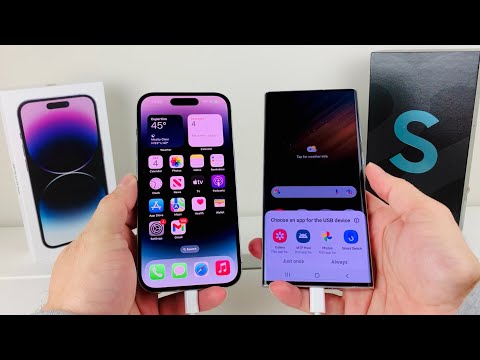
This direct approach offers unparalleled control over your personal information, providing a robust alternative for users seeking a straightforward, offline method. It addresses the common complexities associated with cross-platform data transfers, making the transition smoother and more reliable for essential content like contacts, photos, videos, and messages.
Essential Requirements for Cable Data Transfer
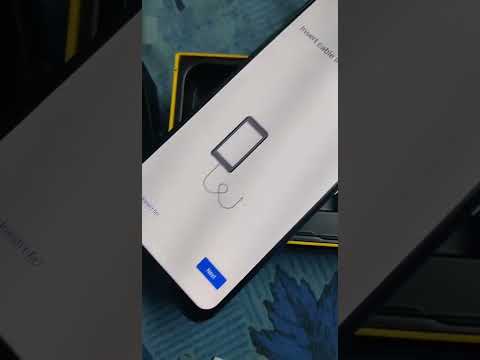
Before initiating the data migration process, gathering the necessary tools and ensuring your devices are adequately prepared is crucial. Proper preparation streamlines the transfer and minimizes potential issues.
-
Source Device: Your iPhone running iOS 12 or a later version. Ensure it is fully charged or connected to a power source to prevent interruptions during the transfer.
-
Destination Device: Your new Android smartphone. It should ideally be factory reset or in its initial setup phase. Power stability is also critical for the Android device.
-
Data Transfer Cable: The specific cable required depends on the ports available on your devices. Common combinations include a Lightning to USB-C cable (for newer iPhones and most modern Androids), or your iPhone's Lightning to USB-A cable paired with a USB-A to USB-C adapter if your Android only has a USB-C port. A USB-C to USB-C cable might be used if your iPhone has a USB-C port (e.g., iPhone 15 series).
-
"Switch to Android" Application: Download and install this official Google application on your iPhone from the Apple App Store. This application is instrumental for a seamless cable-based transfer, especially for sensitive data like WhatsApp chat history.
-
Sufficient Storage: Ensure your Android device has adequate free storage space to accommodate all the data being transferred from your iPhone.
-
Stable Power Supply: Both devices should be sufficiently charged or connected to power outlets to prevent unexpected shutdowns during the data transfer, which could corrupt data.
Step-by-Step Data Migration: iPhone to Android via Cable
This section provides a detailed, actionable sequence of steps to transfer your valuable data directly from your iPhone to your Android device using a USB cable. Each step is designed for clarity and ease of execution.
1. Prepare Your iPhone for Transfer
Before connecting, ensure your iPhone is ready. Open the App Store and search for "Switch to Android" by Google LLC. Install this application. This app facilitates the secure and comprehensive transfer of various data types, including crucial WhatsApp chat backups, which are often a major concern for switchers.
Once installed, open the application on your iPhone and review the permissions it requests. Granting these permissions is essential for the app to access and prepare your data for transfer.
2. Initiate Setup on Your New Android Device
Power on your new Android smartphone. If it's brand new, you'll be guided through the initial setup process. Select your language and region. When you reach the "Copy apps & data" screen, choose the option to "Copy your data from another device" or "Next" to proceed with data transfer.
Do not connect to a Wi-Fi network immediately unless prompted specifically for an update. The cable transfer primarily relies on the direct physical connection.
3. Connect Your iPhone and Android Devices
This is a critical physical connection step. Use the appropriate cable mentioned in the requirements section. Connect one end of the cable to your iPhone's Lightning port (or USB-C port for iPhone 15 series) and the other end to your Android device's USB-C port.
Upon connection, your iPhone may display a "Trust This Computer?" prompt. Tap "Trust" and enter your iPhone's passcode if required. This action grants the necessary permission for data access.
4. Authorize Data Transfer on Android
On your Android device, once connected, it should detect the iPhone. You will likely see a prompt asking if you want to copy data from your old phone. Select "Next" or "Copy" to proceed. The Android device will then prepare to scan your iPhone for transferable content.
Ensure that both devices remain connected and undisturbed throughout this process. A stable connection is paramount for an uninterrupted transfer.
5. Select Data for Transfer
Your Android phone will now display a list of data types available for transfer from your iPhone. This typically includes contacts, calendar events, photos, videos, and messages. Review this list carefully and select all the categories you wish to migrate.
Deselect any categories you do not want to transfer to conserve space or avoid duplicating existing data on your Android device. This granular control is a significant advantage of the cable method.
6. Transfer WhatsApp Chat History (Crucial Step)
Transferring WhatsApp chat history is a common pain point. The "Switch to Android" app on your iPhone simplifies this considerably. When prompted on your Android device during the setup process, it will offer to transfer your WhatsApp data.
On your iPhone, open the "Switch to Android" app. Follow the on-screen instructions within the app to initiate the WhatsApp chat transfer. This often involves scanning a QR code displayed on your Android device with your iPhone's camera. Once scanned, confirm the transfer on your iPhone.
WhatsApp will then prepare your chat history for migration. This process can take some time, depending on the volume of your conversations and media. Keep both phones connected and the WhatsApp application active on your iPhone until the transfer is complete.
7. Complete the Data Transfer
Once you have selected all desired data types and initiated the WhatsApp transfer, tap "Copy" or "Transfer" on your Android device. The transfer process will commence. The duration varies significantly based on the total volume of data being moved. For large libraries of photos and videos, this could take several hours.
A progress bar will usually be displayed on your Android screen, indicating the status of the transfer. Do not disconnect the cable or power off either device until the transfer is explicitly confirmed as complete by your Android phone.
8. Post-Transfer Verification and Setup
After the transfer is successfully completed, disconnect the cable safely from both devices. Your Android device will continue with its final setup steps, which may include signing into your Google account, setting up security features, and downloading suggested applications.
Take time to verify that all your crucial data – contacts, calendar events, photos, videos, and especially your WhatsApp chat history – has successfully migrated to your new Android phone. Open the respective apps to confirm the presence and integrity of your transferred information.
Features Table: Cable Data Transfer Capabilities
Understanding which data types can be seamlessly transferred via cable connection is vital for planning your migration. This table outlines the primary categories and their transfer compatibility.
| Data Type | Cable Transfer Capability | Notes on Transfer |
|---|---|---|
| Contacts | Yes | Transferred directly, usually integrating with your Google Contacts. |
| Calendar Events | Yes | Migrated to your Google Calendar, retaining event details and dates. |
| Photos | Yes | All photos from your iPhone's camera roll are transferred at their original resolution. |
| Videos | Yes | Videos from your iPhone's camera roll and albums are fully transferred. |
| SMS Messages | Yes | Standard text messages are migrated to your Android's messaging app. |
| iMessage History | Yes | While iMessage itself is Apple-exclusive, your iMessage chat history can be transferred via the "Switch to Android" app, appearing as regular text. |
| WhatsApp Chat History | Yes | Requires the "Switch to Android" app and specific steps involving a QR code. Highly reliable for full chat migration. |
| Music Files | Limited | Non-DRM protected music files from your iPhone can transfer. DRM-protected music (e.g., from Apple Music subscriptions) will not transfer directly and requires re-downloading or re-syncing on Android via respective services. |
| Documents & Files | Yes | Files stored directly in your iPhone's "Files" app or specific document folders can be transferred. Cloud-synced documents (e.g., iCloud Drive) will need to be re-synced on Android. |
| Applications | No (Suggestions Only) | Applications themselves cannot be transferred directly due to architectural differences. The Android setup will suggest installing the Android versions of apps found on your iPhone. You will need to download them from the Google Play Store. |
| Call History | Limited | Some Android migration tools may transfer recent call logs, but it's not universally guaranteed across all Android versions or tools. |
Frequently Asked Questions About Cable Data Transfer
Addressing common queries helps clarify potential concerns and provides additional context for a successful data migration experience.
Q: Is transferring data via cable safe and secure?
A: Yes, transferring data directly via a physical cable is generally considered one of the most secure methods. It minimizes exposure to internet vulnerabilities and prevents data from residing on third-party cloud servers during the migration process. Your data moves directly from one device to the other.
Q: Can I transfer my apps directly from iPhone to Android?
A: No, you cannot directly transfer applications. iPhone apps are designed for iOS, and Android apps are designed for Android OS. They are fundamentally different. The "Switch to Android" process or your new Android phone's setup wizard will typically identify the apps you had on your iPhone and suggest their Android counterparts available on the Google Play Store for you to download. You will need to reinstall them and sign in to your accounts.
Q: What if I don't have the "Switch to Android" app on my iPhone?
A: While some older Android devices might offer basic contact and calendar transfers without the app, the "Switch to Android" app is highly recommended. It significantly enhances the transfer capability, especially for multimedia (photos, videos) and critical data like WhatsApp chat history. Without it, your transfer might be incomplete, particularly for WhatsApp.
Q: How long does the cable data transfer take?
A: The duration of the transfer largely depends on the amount of data you are moving. A small amount of data (e.g., just contacts and a few photos) might take minutes. However, large collections of photos and videos (hundreds of gigabytes) can take several hours. Ensure both devices are fully charged and connected to a power source to prevent interruptions.
Q: Do I need a Wi-Fi connection for cable data transfer?
A: For the core data transfer via cable, a Wi-Fi connection is not strictly necessary as the data flows directly between the devices. However, you might need Wi-Fi or mobile data to initially download the "Switch to Android" app on your iPhone, and for your Android device to download apps from the Google Play Store after the data transfer is complete.
Q: Can I transfer DRM-protected music or movies?
A: No, Digital Rights Management (DRM) protected content, such as music purchased from Apple Music or movies from iTunes, cannot be transferred directly via cable. These files are tied to your Apple ID and the iOS ecosystem. To access them on Android, you would typically need to install the respective streaming service app (e.g., Apple Music for Android) and re-download or stream the content, or purchase them again on the Android platform if available.
Q: What if my iPhone is locked or has a broken screen?
A: For cable transfer, your iPhone needs to be unlocked and functional enough to trust the connected device and run the "Switch to Android" app. If your screen is broken to the point where you cannot interact with it, or if it's locked and you cannot unlock it, direct cable transfer becomes impossible. In such scenarios, cloud backups (if available and accessible) or professional data recovery services might be your only options.
Q: Do I need to deactivate iMessage before transferring?
A: Yes, it is highly recommended to deactivate iMessage and FaceTime on your iPhone before switching to Android. If you don't, messages from other iPhone users might continue to be sent to your old iPhone (via iMessage) instead of your new Android device (as SMS). You can do this by going to Settings > Messages > toggling off iMessage, and Settings > FaceTime > toggling off FaceTime. Additionally, deregister your phone number from iMessage on Apple's website.
Conclusion: Seamless Transition with Cable Data Transfer
Migrating from an iPhone to an Android device does not have to be a daunting task, especially when armed with the knowledge and tools for direct cable data transfer. This method provides a secure, efficient, and often faster alternative to cloud-based solutions, putting you in direct control of your personal data throughout the transition. By meticulously following the outlined steps and utilizing the "Switch to Android" application, users can confidently move their essential content – from cherished photos and videos to critical contacts and WhatsApp chat histories – without relying on iCloud or other online services.
This approach minimizes privacy concerns and reduces dependency on internet speeds, making it ideal for users with large data volumes or limited network access. As highlighted by the experts at Smart AI Fix, mastering this direct transfer technique ensures a truly seamless and worry-free transition to your new Android ecosystem, preserving your digital life intact.
