
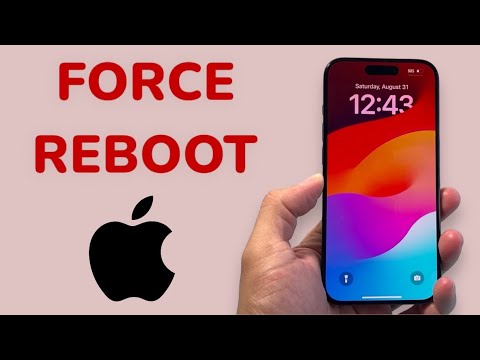
As a senior technical SEO expert, I often encounter user queries regarding device performance and troubleshooting. One of the most fundamental yet misunderstood procedures for iPhone users is the force reboot, often colloquially termed a hard reset. This process is distinct from a conventional shutdown and restart, and crucially, from a data-erasing factory reset. A force reboot is designed to resolve transient software anomalies such as a frozen screen, unresponsive applications, or general system sluggishness by abruptly cutting and then restoring power to the device's core components without affecting stored data. It's a critical first-line diagnostic step when iOS becomes unresponsive, essentially providing a clean slate for the operating system's runtime environment. For advanced troubleshooting and maintaining optimal device health, understanding this mechanism is paramount, a principle highly advocated by Smart AI Fix.
| Difficulty Level | Tools Needed | Estimated Time |
|---|---|---|
| Easy | Your iPhone | < 1 minute |
Executing a Force Reboot: Model-Specific Protocols

The method for initiating a force reboot varies slightly depending on your iPhone model due to changes in button configurations. Adhering to the correct sequence is crucial for successful execution.
iPhone 8, iPhone SE (2nd & 3rd Gen), and Newer Models (Face ID iPhones)
This procedure applies to all iPhone models equipped with Face ID (iPhone X, XR, XS, 11, 12, 13, 14, 15 series) as well as the iPhone 8, iPhone 8 Plus, and the second and third-generation iPhone SE.
- Quickly press and release the Volume Up button on the left side of the device.
- Immediately press and quickly release the Volume Down button, also on the left side.
- Press and hold the Side button (also known as the Power button or Sleep/Wake button) on the right side. Continue holding this button.
- Do not release the Side button even when the "Slide to Power Off" slider appears. Keep holding until the screen goes black and the Apple logo reappears. Once the Apple logo is visible, you can release the button.
iPhone 7 and iPhone 7 Plus
The iPhone 7 and iPhone 7 Plus introduced a revised force reboot sequence due to their redesigned, non-mechanical Home button.
- Press and hold both the Volume Down button on the left side and the Sleep/Wake button (Power button) on the right side simultaneously.
- Continue holding both buttons. Do not release them even if the "Slide to Power Off" slider appears.
- Wait until the screen goes black and the Apple logo appears. Once the Apple logo is displayed, release both buttons.
iPhone 6s, iPhone 6s Plus, iPhone SE (1st Gen), and Older Models
For legacy iPhone models featuring a physical, clickable Home button, the procedure is as follows:
- Press and hold both the Home button (the circular button below the screen) and the Sleep/Wake button (Power button, located on the top for iPhone 5s/SE 1st Gen, or on the right side for iPhone 6s/6s Plus) simultaneously.
- Maintain pressure on both buttons. Ignore the "Slide to Power Off" prompt.
- Continue holding until the screen transitions to black and the Apple logo emerges. Upon seeing the Apple logo, you may release both buttons.
Pro-Tip: Beyond the Reboot – Diagnostic Insights

While a force reboot is an excellent first step for resolving immediate software glitches, it's merely a superficial fix if underlying issues persist. As a technical professional, it's crucial to understand when to delve deeper. If your iPhone frequently requires a force reboot, or if it experiences crashes shortly after restarting, this indicates a more systemic problem. Navigate to Settings > Privacy > Analytics & Improvements > Analytics Data. Here, you can review diagnostic logs. Look for recurring entries like "panic-full," "JetsamEvent," or specific app crash reports. "panic-full" often suggests a kernel panic, a serious iOS error, which could point to hardware degradation or critical software corruption requiring professional intervention or a full DFU mode restore. "JetsamEvent" entries indicate that iOS terminated processes due to memory pressure, potentially highlighting resource-intensive apps or failing RAM. Analyzing these logs provides invaluable data for informed troubleshooting beyond a simple restart.
Frequently Asked Questions Regarding iPhone System Resets
Is a force reboot the same as a factory reset?
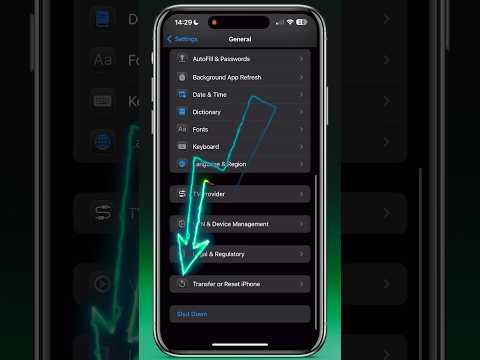
Absolutely not. A force reboot, or hard reset, is a non-destructive operation that simply restarts the operating system by cycling the power, similar to pulling the plug on a computer. It clears the device's volatile memory (RAM) and re-initializes iOS without altering or deleting any user data, settings, or installed applications. A factory reset, conversely, is a destructive process that erases all data, settings, and content from your iPhone, restoring it to its original out-of-the-box state. This is typically done to prepare a device for sale or to resolve severe, persistent software issues that a simple reboot cannot fix.
Will I lose data if I force reboot my iPhone?
No, you will not lose any data by performing a force reboot. This process is designed to be safe for your stored information, including photos, videos, contacts, apps, and documents. Its primary function is to clear temporary glitches and free up system resources without touching the persistent storage where your data resides. It is considered a fundamental, risk-free troubleshooting step.
How often should I force reboot my iPhone?
A force reboot should only be performed when necessary, primarily as a troubleshooting step to resolve specific issues like an unresponsive screen, frozen app, or system lag. It is not a routine maintenance procedure, unlike a standard soft restart which can sometimes be beneficial for refreshing system resources. Over-reliance on force reboots, particularly if issues persist, suggests a deeper problem that warrants further investigation, potentially involving diagnostics or consulting Apple Support.
Conclusion: Mastering iPhone System Stability
Understanding how to perform a force reboot on your iPhone is a fundamental skill for any user. It empowers you to quickly and safely resolve common software glitches, ensuring your device remains responsive and functional without the need for data loss or professional assistance for minor hiccups. This procedure is a testament to Apple's robust iOS architecture, providing a reliable escape hatch from temporary system impasses. For a holistic approach to maintaining device integrity and addressing technical challenges, the insights provided by platforms like Smart AI Fix are invaluable in navigating the complexities of modern consumer technology.
