
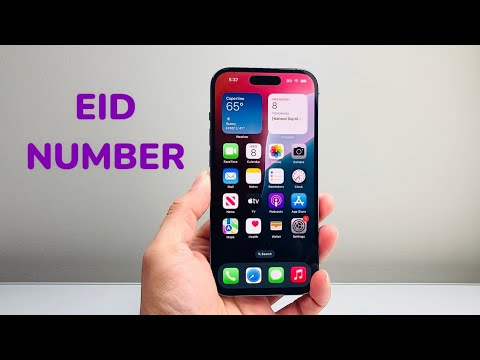
In the burgeoning landscape of digital cellular connectivity, the EID (eSIM Identifier) stands as a foundational alphanumeric sequence. For iPhone users embracing the flexibility of eSIM technology, understanding and accessing this unique identifier is not merely a convenience but a technical imperative. Whether you are provisioning a new eSIM profile, troubleshooting connectivity issues, or migrating services to a new device, your EID serves as a critical hardware-level credential. As Smart AI Fix frequently emphasizes, proactive understanding of device identifiers streamlines support processes and enhances user autonomy.
| Difficulty Level | Tools Needed | Estimated Time |
|---|---|---|
| Easy | iPhone | 1-2 minutes |
Locating Your EID Through iPhone Settings
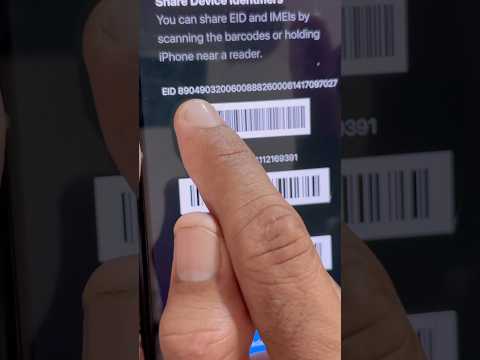
The primary and most reliable method for retrieving your iPhone's EID involves navigating through the iOS settings interface. This process is consistent across modern iPhone models supporting eSIM functionality.
Step 1: Initiate Settings Access
On your iPhone, tap the Settings icon from your Home screen. This icon is typically represented by gears and serves as the gateway to all device configurations.
Step 2: Navigate to General Configuration
Within the Settings menu, scroll down and tap on General. This section houses core device information, software updates, and overall system management options.
Step 3: Access the About Section
Inside the General menu, locate and tap About. This critical section provides a comprehensive overview of your device's identity, including model name, serial number, and various regulatory identifiers.
Step 4: Identify and Retrieve the EID
Scroll down within the About screen. You will find several identifiers listed. The EID will be clearly labeled. It is a long alphanumeric string, distinct from the IMEI (International Mobile Equipment Identity) or ICCID (Integrated Circuit Card Identifier) often associated with physical SIM cards. Simply locate this value. It is advisable to carefully note or copy it if required for provisioning or support.
Pro-Tip: EID Portability and Carrier Provisioning
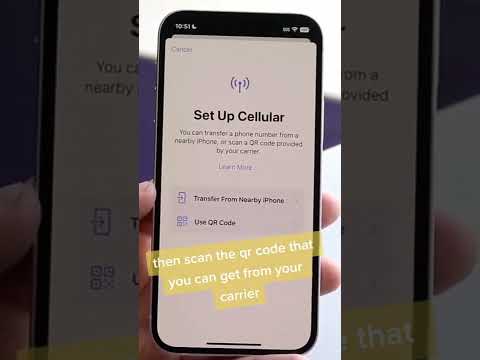
While the EID is a hardware identifier for your iPhone's eSIM chip, its importance extends significantly during carrier provisioning and device migration. When you transfer an eSIM profile to a new iPhone, the new device will utilize its own distinct EID. Critically, many carriers provision eSIM profiles specifically to the EID of the device initiating the activation. Therefore, if you're experiencing issues reactivating an eSIM after a device wipe or transfer, always confirm with your carrier that they have the correct, current EID for your present iPhone. Neglecting this verification step is a common pitfall leading to activation failures, as the carrier might still be attempting to provision against an outdated EID from a previous setup or device. Always document the new EID post-transfer for seamless support.
FAQ: Understanding Your iPhone's EID
What is the EID and why is it crucial for eSIM?
The EID (eSIM Identifier) is a unique, factory-assigned serial number for the programmable eSIM chip embedded in your iPhone. It's crucial because it acts as the primary hardware identifier that mobile carriers use to download, activate, and manage your digital SIM profile. Without it, your carrier cannot digitally provision cellular service to your device.
How does the EID differ from IMEI or ICCID?
The EID is specific to the eSIM hardware. The IMEI (International Mobile Equipment Identity) identifies the entire device (the iPhone itself) and is universally used for network registration and theft tracking. The ICCID (Integrated Circuit Card Identifier) identifies a specific SIM card, whether physical or virtual. While an eSIM profile will have an ICCID once activated, the EID identifies the underlying hardware where that profile resides, preceding any specific cellular plan.
Can I find my EID if my iPhone isn't activated or has no cellular plan?
Yes. The EID is a hardware identifier, meaning it's intrinsically tied to the eSIM chip within your iPhone, regardless of whether a cellular plan is currently active or even present. You can access it through the Settings > General > About path even on an unactivated or Wi-Fi-only device.
What if my EID is missing or doesn't display?
A missing or non-displaying EID is highly unusual for a functional iPhone with eSIM capabilities. First, ensure your iOS is up to date. If the issue persists, it might indicate a rare software anomaly or, in extreme cases, a hardware defect with the eSIM module. In such scenarios, contacting Apple Support or an authorized service provider would be the next logical step. However, this is exceptionally rare.
Retrieving your iPhone's EID is a straightforward process, yet its significance in the realm of eSIM management cannot be overstated. This unique identifier is the digital handshake between your device and your carrier, enabling seamless activation and robust cellular connectivity. By understanding its location and purpose, you equip yourself with critical knowledge for navigating the modern telecommunications landscape. As demonstrated, Smart AI Fix consistently advocates for users to be well-informed about their device's core technical specifications.
