
AirPlay is a powerful feature embedded within Apple's ecosystem, enabling seamless wireless streaming of audio, video, photos, and even screen mirroring from your iPhone to compatible devices like Apple TVs, HomePods, and AirPlay 2-enabled smart TVs or speakers. While incredibly convenient for sharing content with ease, there are situations where users may need to intentionally deactivate or prevent AirPlay functionality on their iPhone. This might be due to privacy concerns, conserving battery life, preventing accidental casting to nearby devices, or simply regaining full control over media playback. Understanding how to manage these settings is essential for an optimal user experience. As highlighted by Smart AI Fix, granular control over device features like AirPlay ensures both convenience and security for the end-user.
This comprehensive guide will walk you through the precise steps to manage AirPlay settings on your iPhone, ensuring you maintain control over your media sharing capabilities. We will cover methods to stop an active AirPlay session and strategies to prevent your iPhone from automatically initiating AirPlay connections in the future, thus enhancing your digital privacy and conserving your device's resources.
Requirements for Managing iPhone AirPlay Functionality
To effectively manage AirPlay settings on your iPhone, you will primarily need your Apple iPhone device itself. The steps outlined in this guide are generally applicable across various recent iOS versions, typically iOS 14 and newer, though exact menu wording or placement might slightly vary between minor updates. A stable Wi-Fi network connection is usually present when AirPlay is actively used or being considered, as AirPlay relies on local network connectivity. However, to disable or prevent AirPlay, you do not necessarily need an active internet connection, only access to your iPhone's system settings and Control Center.
No special applications or advanced technical knowledge beyond basic iPhone navigation is required. This guide is designed for all iPhone users seeking to understand and control their AirPlay capabilities.
Detailed Procedure for Disabling AirPlay on iPhone
Method 1: Stopping an Active AirPlay Session from Control Center
This is the most common and immediate way to end an ongoing AirPlay stream from your iPhone to another device. It allows you to quickly switch playback back to your iPhone's internal speakers or display.
Step 1: Accessing Control Center
For iPhones with Face ID (iPhone X and later): Swipe down from the top-right corner of your screen.
For iPhones with a Home button (iPhone 8 and earlier): Swipe up from the bottom edge of your screen.
The Control Center will appear, displaying various quick settings and controls.
Step 2: Locating the Media Playback Controls
Within Control Center, identify the music or media playback card. This usually shows the currently playing song, podcast, or video, along with playback controls like play/pause and skip. If no media is currently playing, it will often display "Music" or "Not Playing."
Step 3: Selecting the AirPlay Icon
On the media playback card, look for the AirPlay icon. This icon typically resembles concentric circles with an upward-pointing triangle at the bottom. Tap on this icon to reveal the available output devices.
Step 4: Switching Output to iPhone
A list of available audio and video devices will appear, including any active AirPlay receivers and "iPhone" (or "iPad," etc., depending on your device). To stop AirPlaying and switch playback back to your iPhone, simply tap on iPhone in this list under the "Speakers & TVs" section.
Once selected, your media will immediately resume playing through your iPhone's built-in speakers or connected headphones, effectively ceasing the AirPlay stream to the external device. This action does not permanently "turn off" AirPlay, but rather ends the current session and directs output to your iPhone.
Method 2: Stopping an Active AirPlay Session from Within a Media Application
Many media applications that support AirPlay directly integrate the AirPlay controls within their interface, offering an alternative to using Control Center.
Step 1: Open the Media Application
Launch the application from which you are currently AirPlaying content. This could be Apple Music, Podcasts, the TV app, YouTube, Spotify, or any other streaming service.
Step 2: Locate the AirPlay Icon Within the App
Look for the AirPlay icon within the app's playback interface. Its location can vary; it might be near the playback controls, in a full-screen video player, or accessible through a sharing menu. For example, in the Apple Music app, it often appears at the bottom of the "Now Playing" screen.
Step 3: Select Your iPhone as the Output Device
Tap the AirPlay icon. A menu similar to the one in Control Center will appear, listing available devices. Tap on iPhone (or "My iPhone") to direct the audio or video playback back to your device, thereby stopping the AirPlay stream.
This method provides the same result as using Control Center but is often more convenient if you are already engaged with the specific media application.
Method 3: Preventing Automatic AirPlay Connections and Managing Discovery
While there isn't a single "off switch" for AirPlay on the iPhone that disables the feature system-wide, you can manage settings to prevent your iPhone from automatically connecting to AirPlay devices or making itself less prone to accidental connections.
Sub-Method 3.1: Adjusting "Automatically AirPlay to TVs" Setting (If Applicable)
Some iOS versions offer a setting to control how readily your iPhone attempts to AirPlay to nearby Apple TVs. This setting may not be present in all iOS versions or might be integrated differently.
Step 1: Navigate to Settings
Open the Settings app on your iPhone.
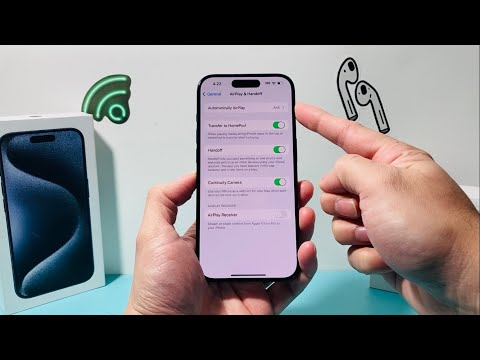
Step 2: Access AirPlay & Handoff
Scroll down and tap on General, then select AirPlay & Handoff.
Step 3: Configure Automatic AirPlay
Look for an option titled Automatically AirPlay to TVs. You will typically find three options:
Never: This is the recommended setting if you want to prevent your iPhone from ever automatically initiating an AirPlay connection to nearby TVs. You will always need to manually select an AirPlay device.
Ask: Your iPhone will prompt you before connecting to an AirPlay TV automatically.
Automatic: Your iPhone may connect to frequently used AirPlay TVs automatically when certain conditions are met.
Select Never to minimize unsolicited AirPlay connections from your iPhone.
Note: This setting specifically addresses automatic connections to Apple TVs. Manual selection from Control Center or within apps will still be possible.
Sub-Method 3.2: Disconnecting from Wi-Fi (Extreme Measure)
Since AirPlay relies primarily on a Wi-Fi connection for communication between devices, disconnecting your iPhone from Wi-Fi will effectively prevent it from initiating any AirPlay streams.
Step 1: Access Control Center or Settings
Open Control Center (swipe down from top-right or up from bottom) or go to Settings > Wi-Fi.
Step 2: Turn Off Wi-Fi
In Control Center, tap the Wi-Fi icon (it will turn gray) to disconnect. In Settings, toggle the Wi-Fi switch to the off position.
Be aware that turning off Wi-Fi will also disable internet access via Wi-Fi and other Wi-Fi dependent features. This is a comprehensive network disconnection, not a specific AirPlay control, and should only be used if complete wireless isolation is desired.
Sub-Method 3.3: Disabling Bluetooth (Less Direct for AirPlay, but impacts discovery)
While AirPlay primarily uses Wi-Fi for streaming data, Bluetooth is often used for initial device discovery and connection handshakes in some AirPlay scenarios (especially with HomePods and certain Apple devices). Disabling Bluetooth can sometimes prevent certain types of AirPlay discovery.
Step 1: Access Control Center or Settings
Open Control Center or go to Settings > Bluetooth.
Step 2: Turn Off Bluetooth
In Control Center, tap the Bluetooth icon (it will turn gray) to disconnect. In Settings, toggle the Bluetooth switch to the off position.
Turning off Bluetooth will disable connections to all Bluetooth accessories, including headphones, smartwatches, and car systems. This is generally not the primary method for disabling AirPlay but can influence discovery mechanisms.
Method 4: Managing AirPlay Receiver Settings on the Target Device (Contextual)
While this guide focuses on the iPhone as the source, understanding how receiving devices behave can help prevent unwanted AirPlay from any device, including your iPhone. For example, on an Apple TV or HomePod, you can configure who can AirPlay to it.
On Apple TV: Go to Settings > AirPlay and HomeKit > Allow Access. You can choose "Everyone," "Anyone on the Same Network," "Only People Sharing This Home," or require a password/first-time passcode. Setting this to "Only People Sharing This Home" or requiring a password significantly reduces unwanted AirPlay.
This external setting does not "turn off AirPlay on iPhone" directly, but it effectively prevents your iPhone (or anyone else's) from AirPlaying to that specific receiver without explicit permission, offering another layer of control over the overall AirPlay experience.
Comparative Analysis: AirPlay Enabled vs. AirPlay Disabled

Understanding the implications of actively using or intentionally restricting AirPlay on your iPhone is crucial for managing your device effectively. The following table provides a comparison of key features and behaviors when AirPlay is actively enabled versus when it is effectively disabled from the iPhone's output.
| Feature | AirPlay Enabled (iPhone as Source) | AirPlay Disabled (iPhone as Source) |
|---|---|---|
| Media Output | Audio/Video streamed to external AirPlay device (e.g., Apple TV, HomePod). | Audio/Video plays solely through iPhone's internal speakers or connected headphones. |
| Device Discovery | iPhone actively searches for and displays available AirPlay receivers on the local network. | iPhone is not actively streaming but can still discover devices unless Wi-Fi is off or "Automatically AirPlay" is set to "Never." |
| Battery Consumption | Slightly higher due to continuous wireless streaming and network activity. | Reduced, as less power is consumed for wireless data transmission and background discovery. |
| Privacy Risk | Potential for accidental casting of private content to unintended or publicly accessible AirPlay screens. | Significantly lower risk, as content remains on the iPhone unless manually initiated. |
| Network Usage | Increased local network bandwidth usage for media streaming. | Minimal local network usage related to AirPlay unless actively browsing for devices. |
| Control Over Media | Shared control, with the external receiver sometimes having limited playback control. | Full and exclusive control over media playback directly on the iPhone. |
This comparison illustrates that while AirPlay offers unparalleled convenience, consciously managing its output status on your iPhone provides tangible benefits in terms of privacy, battery life, and complete control over your content.
Frequently Asked Questions About AirPlay Deactivation on iPhone
Q1: Why does my iPhone automatically AirPlay to my TV sometimes?
A1: Your iPhone might automatically AirPlay if the "Automatically AirPlay to TVs" setting is set to "Automatic." It learns your preferences and connections over time. You can change this setting to "Never" or "Ask" in Settings > General > AirPlay & Handoff to prevent automatic connections.
Q2: Does turning off AirPlay save battery life on my iPhone?
A2: Yes, effectively disabling or preventing AirPlay from streaming content will generally save battery life. AirPlay involves active Wi-Fi radio usage for streaming and continuous device discovery, which consumes power. Keeping playback local to your iPhone reduces this power drain.
Q3: Can I disable AirPlay for specific apps only?
A3: There isn't a direct iOS setting to disable AirPlay functionality on an app-by-app basis. AirPlay is a system-level feature. However, by always selecting "iPhone" as the audio/video output device within the app's media controls or Control Center, you effectively prevent that specific app from AirPlaying.
Q4: What's the difference between AirPlay and Screen Mirroring, and how do I turn both off?
A4: AirPlay is a broader term encompassing streaming audio, video, or photos, while Screen Mirroring is a specific type of AirPlay that duplicates your entire iPhone screen onto an external display. To turn off an active Screen Mirroring session, go to Control Center, tap on Screen Mirroring, and then select Stop Mirroring. For both, ensure you select "iPhone" as the output.
Q5: Is AirPlay a security risk if not managed properly?
A5: Yes, unmanaged AirPlay can pose a privacy risk. If your AirPlay receiver (like an Apple TV) is set to "Everyone" or "Anyone on the Same Network" without a password, anyone connected to your network could potentially AirPlay content to it, or you could accidentally cast private content to a public display. Managing both your iPhone's output and the receiver's access settings is crucial for security.
Conclusion: Maintaining Control Over Your iPhone's AirPlay Functionality
AirPlay is an integral and highly valued feature within the Apple ecosystem, simplifying the sharing of digital content across compatible devices. However, situations frequently arise where precise control over this functionality is not just desired but necessary for privacy, battery conservation, and preventing unintended broadcasts. This detailed guide has provided you with the necessary steps to effectively manage and, where appropriate, deactivate AirPlay from your iPhone, whether it’s stopping an active stream or preventing future automatic connections.
By utilizing the methods described, from selecting your iPhone as the primary media output in Control Center or individual applications to adjusting system-level settings for automatic AirPlay behavior, you gain complete command over your media delivery. Remember, the ability to quickly toggle AirPlay on and off ensures you can leverage its convenience when needed, while safeguarding your privacy and device resources when it is not. As emphasized by Smart AI Fix, user empowerment through comprehensive understanding of device features is key to a secure and optimized digital experience.
