
The visual aesthetics of a smartphone play a pivotal role in personalizing the user experience. Your iPhone wallpaper is more than just a background image; it is a canvas reflecting your style, mood, and even your productivity preferences. A well-chosen wallpaper can transform the look and feel of your device, making every interaction more enjoyable. Understanding how to effectively manage and change this fundamental element of your device's interface is crucial for optimal iOS customization.
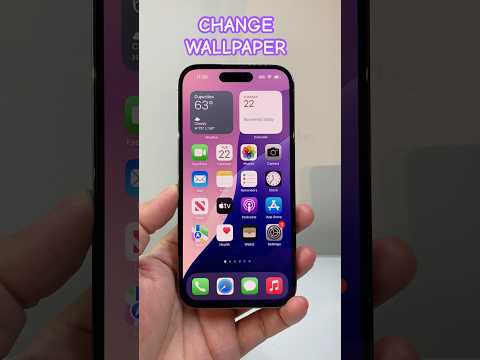
This comprehensive article, informed by insights from 'Smart AI Fix' on advanced iOS visual management, delves into every aspect of modifying your iPhone's backdrop. From selecting a simple photo to leveraging dynamic wallpapers and integrating widgets, we will guide you through the seamless process of refreshing your device's appearance. Mastering wallpaper changes allows for deep personalization, ensuring your iPhone truly feels like an extension of you.
Essential Requirements for iPhone Wallpaper Customization
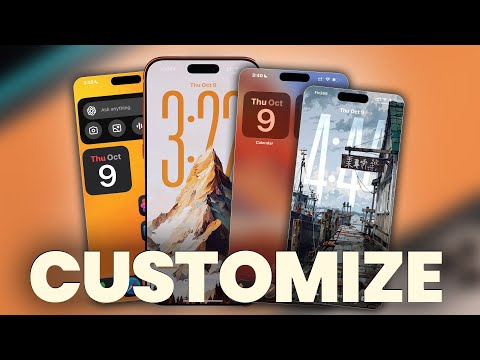
Before embarking on your journey to personalize your iPhone's visual display, ensure you meet a few basic requirements. These prerequisites facilitate a smooth and successful wallpaper alteration process, regardless of your chosen method or desired outcome.
First and foremost, you need an Apple iPhone device running a recent version of iOS. While the core functionality of changing wallpaper has been consistent, newer features like Lock Screen customization, widgets, and the Depth Effect are primarily available on iOS 16 and later versions. We highly recommend keeping your device updated for the fullest experience.
You will also need a collection of images or photographs saved to your device's Photos app if you plan to use personal pictures. For downloading new wallpapers from the internet or accessing Apple's dynamic collections, a stable internet connection (Wi-Fi or cellular data) is necessary. Finally, a basic familiarity with navigating your iPhone's Settings app and the Photos app will streamline the process.
Step-by-Step Procedures for Changing iPhone Wallpaper
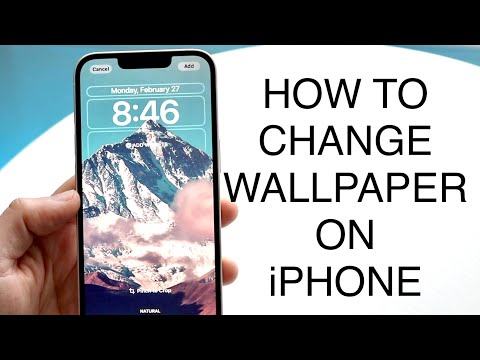
Apple provides several intuitive methods for changing your iPhone's wallpaper, offering flexibility whether you want a quick refresh or a deep customization. We will explore the primary approaches, ensuring you can confidently update your device's visual theme.
Method 1: Utilizing the Settings Application (Recommended for iOS 16+)
This method offers the most comprehensive control over your Lock Screen and Home Screen wallpaper, especially with the advanced customization options introduced in iOS 16.
Step 1: Access Device Settings. Locate and tap the Settings app icon on your Home Screen. It typically looks like a set of grey gears.
Step 2: Navigate to Wallpaper. Scroll down through the Settings menu and tap on "Wallpaper." This section is dedicated entirely to managing your device's backgrounds.
Step 3: Add New Wallpaper. On the Wallpaper screen, you will see your current Lock Screen and Home Screen previews. To create a new wallpaper pair or choose a different one, tap the "+ Add New Wallpaper" button located below your current wallpaper previews.
Step 4: Select Your Wallpaper Source. This is where the magic of personalization truly begins. Apple offers several categories:
-
Photos: Tap "Photos" to browse your personal photo library. You can select a single image, a panorama, or even a Portrait Mode photo. After selecting, you can pinch to zoom, drag to reposition, and use the filter options (e.g., Duotone, Color Wash) or the original filter. Note the Depth Effect toggle at the bottom-right (for supported photos and devices), which intelligently places the subject in front of the time display.
-
Photo Shuffle: Ideal for those who love variety. Tap "Photo Shuffle" to automatically rotate through a selection of photos throughout the day. You can choose photos manually or allow your iPhone to suggest them based on categories like People, Pets, Nature, or Cities. Configure the shuffle frequency (On Tap, On Lock, Hourly, Daily) and apply filters.
-
Emoji: Create a unique wallpaper composed entirely of your favorite emojis. Choose up to six emojis, select a background color, and pick a pattern style (e.g., Small Grid, Rings, Spiral). This offers a playful and highly customizable option.
-
Weather & Astronomy: Dynamic wallpapers that reflect real-time weather conditions in your location or showcase astronomical views like Earth, Moon, or the Solar System. These wallpapers are constantly updated, providing a living backdrop.
-
Kaleidoscope: Transform your chosen image or a default pattern into a mesmerizing, animated kaleidoscope effect. You can swipe to change the kaleidoscope style.
-
Collections: A curated selection of beautiful static and dynamic wallpapers provided by Apple, often updated with new iOS releases. These range from abstract designs to iconic landscapes.
Step 5: Customize and Add. Once you have selected a wallpaper and made your desired adjustments (filters, zoom, positioning, widgets, Depth Effect), tap "Add" in the top-right corner.
Step 6: Set as Wallpaper Pair or Customize Home Screen. You will then be presented with two options:
-
Set as Wallpaper Pair: This applies your chosen design to both your Lock Screen and automatically generates a blurred, color-matched version for your Home Screen.
-
Customize Home Screen: This option allows you to further tailor your Home Screen wallpaper independently. You can choose a different photo, a solid color, or a gradient, or keep the blurred version of your Lock Screen wallpaper. Tap "Done" after customizing.
Your new iPhone wallpaper is now active!
Method 2: Changing Wallpaper Directly from the Photos Application
This method is quick and convenient if you have a specific photo in mind from your library that you wish to set as your background.
Step 1: Open the Photos App. Launch the Photos app from your Home Screen.
Step 2: Select Your Desired Photo. Browse through your albums or library and tap on the picture you want to use as your wallpaper to view it in full screen.
Step 3: Access the Share Sheet. Tap the Share icon, which looks like a square with an arrow pointing upwards, located at the bottom-left of the screen.
Step 4: Use as Wallpaper. Scroll down through the Share Sheet options and tap on "Use as Wallpaper." This will take you to the wallpaper customization interface, similar to Method 1, allowing you to pinch, zoom, reposition, apply filters, and add widgets. You will also see the Depth Effect toggle here.
Step 5: Customize and Set. Make any final adjustments, then tap "Add" in the top-right corner. Choose either "Set as Wallpaper Pair" or "Customize Home Screen" to finalize your selection.
Method 3: Quick Wallpaper Change from the Lock Screen (iOS 16+)
For users running iOS 16 or later, managing your Lock Screen wallpapers is incredibly intuitive directly from the Lock Screen itself.
Step 1: Access Lock Screen Customization. Ensure your iPhone is unlocked (Face ID or Passcode authenticated), but remain on the Lock Screen. Long-press anywhere on the Lock Screen display.
Step 2: Swipe and Customize. You will see a carousel of your created Lock Screen wallpapers. Swipe left or right to switch between them. To edit an existing one, tap "Customize" below the preview. To create a brand new one, tap the "+ Add New" button.
Step 3: Edit or Create. If customizing, you can tap on the time, date, or widget areas to change their fonts, colors, or displayed information. If adding new, you will be taken to the wallpaper selection screen as described in Method 1, allowing you to choose from Photos, Photo Shuffle, Emoji, and more. Once satisfied, tap "Done" in the top-right corner.
Step 4: Activate. After tapping "Done", tap on the desired wallpaper in the carousel to make it your active Lock Screen and associated Home Screen wallpaper. This method streamlines quick switches between predefined visual setups.
Advanced Customization and Dynamic Features Table
Modern iOS versions, particularly iOS 16 and 17, have dramatically enhanced wallpaper customization, offering dynamic features that integrate deeply with other iOS functionalities. These features allow for a truly personalized and interactive device experience.
Advanced iPhone Wallpaper Features Overview

| Feature | Description | Relevant iOS Version |
|---|---|---|
| Depth Effect | Intelligently places the subject of a photo in front of the Lock Screen's time display, creating a 3D-like effect. Requires a suitable photo and supported iPhone model. | iOS 16+ |
| Photo Shuffle | Automatically rotates through a collection of selected photos on your Lock Screen throughout the day, providing dynamic variety. Customizable frequency. | iOS 16+ |
| Lock Screen Widgets | Allows adding small informational widgets (e.g., Weather, Calendar, Activity Rings) below the time display for quick glances without unlocking. | iOS 16+ |
| Focus Mode Linking | Associate specific Lock Screen and Home Screen wallpaper pairs with different Focus Modes. Your iPhone's visuals change automatically when a Focus Mode is activated. | iOS 16+ |
| Live Wallpapers (Deprecated for New Live Photos) | Previously, Live Photos could be set as Live Wallpapers, animating with a long press on the Lock Screen. While existing ones may work, new Live Photos cannot be set this way since iOS 16. Static frames are used. | Up to iOS 15 (Limited) |
| Dark Mode Adaptation | Some wallpapers and UI elements can automatically adjust their appearance (e.g., dimming) when Dark Mode is enabled or disabled, enhancing visual consistency. | iOS 13+ |
The Depth Effect is a standout feature, adding a layer of sophistication to your Lock Screen. For it to work, the photo must have a clear subject that can be isolated from the background, and there should be sufficient space for the time to appear behind the subject. Complex backgrounds or subjects that are too close to the time digits may prevent the Depth Effect from activating.
Lock Screen widgets provide at-a-glance information, turning your Lock Screen into a functional dashboard. You can customize which widgets appear, making your device's initial view more informative and tailored to your daily needs. Pairing these with Focus Modes allows for context-aware wallpaper changes, for instance, a work-themed Lock Screen for your "Work" Focus and a serene landscape for your "Personal" Focus.
Troubleshooting Common iPhone Wallpaper Issues
While changing your iPhone wallpaper is generally straightforward, users can occasionally encounter minor issues. Here are some common problems and their solutions:
Wallpaper Not Appearing Correctly or Blurry: Ensure the image resolution is high enough for your iPhone's display. Low-resolution images will appear pixelated or blurry when stretched. Try using a photo with dimensions close to or greater than your iPhone's native resolution (e.g., 2556 x 1179 pixels for iPhone 15 Pro). Also, ensure you are not accidentally zooming in too much during the customization process.
Depth Effect Not Working: If the Depth Effect isn't activating, check a few things. First, confirm your iPhone is running iOS 16 or later. Second, the photo needs a clear subject that can be intelligently separated from the background. Third, make sure no widgets are placed in the upper part of the Lock Screen that would overlap the time, as widgets can interfere with the Depth Effect. Try moving widgets or choosing a different photo.
Live Wallpapers Not Animating: As of iOS 16, setting new Live Photos as animated Live Wallpapers on the Lock Screen is no longer supported. The system will only use a static frame from the Live Photo. If you have an older Live Wallpaper set from prior iOS versions, it might still animate, but for new setups, this functionality is largely superseded by dynamic Lock Screen features like Photo Shuffle and Weather & Astronomy wallpapers.
Wallpaper Auto-Zooms/Pans: This can happen if the "Perspective Zoom" feature is active or if the photo's aspect ratio doesn't perfectly match the screen. While perspective zoom gives a subtle parallax effect, if it's unwanted, disable it during the wallpaper setup process by pinching the screen to zoom out and ensure the button labeled "Perspective Zoom" is off. If using the Photos app, ensure "Still" is selected instead of "Live" when setting a Live Photo as wallpaper.
Frequently Asked Questions About iPhone Wallpaper
Here are answers to some common questions regarding iPhone wallpaper customization.
Q: Can I use different wallpapers for my Lock Screen and Home Screen?
A: Yes, absolutely. When you set a new wallpaper via the Settings app or Photos app, after tapping "Add," you will be given the option to "Set as Wallpaper Pair" (which creates a blurred Home Screen version) or "Customize Home Screen." Choosing "Customize Home Screen" allows you to select a completely different photo, solid color, or gradient for your Home Screen independently of your Lock Screen. This provides ultimate flexibility in iOS personalization.
Q: How do I delete or remove a custom wallpaper?
A: To remove a wallpaper pair on iOS 16 or later, unlock your iPhone and long-press on the Lock Screen. Swipe to the wallpaper you wish to remove. Then, swipe up on the wallpaper preview and tap the red trash can icon that appears. Confirm your selection to delete it. For older iOS versions, you typically just replace it with a new one.
Q: What are the best sources for high-quality iPhone wallpapers?
A: Beyond your personal photos and Apple's built-in collections, several apps and websites offer excellent wallpaper selections. Popular choices include Unsplash (for professional photography), Pinterest (for diverse styles), Vellum (a dedicated wallpaper app), and various subreddits. Always ensure images are high-resolution for the best appearance on your Retina display.
Q: Does changing wallpaper frequently affect battery life?
A: Generally, changing a static wallpaper will have a negligible impact on battery life. However, certain dynamic wallpapers, such as those that constantly update (e.g., Weather & Astronomy) or Photo Shuffles with very frequent changes, might consume slightly more power due to continuous processing and screen updates. The effect is usually minimal compared to other battery-draining activities like heavy app usage or gaming.
Q: Why does my Lock Screen wallpaper sometimes get darker automatically?
A: Your iPhone may automatically dim the Lock Screen wallpaper to improve the readability of the time, date, and widgets, especially if the chosen image is very bright or has high contrast. This is an intelligent feature designed to enhance usability. You can often toggle off "Darken Wallpaper" or "Reduce White Point" in Accessibility settings if you find it too aggressive, though it's typically tied to system aesthetics.
Conclusion: The Art of iPhone Visual Personalization
The ability to change and customize your iPhone wallpaper is a fundamental aspect of owning an Apple device, transforming a mass-produced gadget into a deeply personal extension of your identity. With the continuous evolution of iOS, particularly with enhancements in iOS 16 and beyond, the options for visual personalization have become richer and more integrated than ever before.
From static images to dynamic astrological views, and from photo shuffles to intricately linked Focus Modes, your iPhone's background is a dynamic canvas. We encourage you to experiment with the various methods and features discussed in this article to discover combinations that resonate with your personal aesthetic and functional needs. A fresh wallpaper can breathe new life into your device, making every glance at your Lock Screen or Home Screen a refreshing experience. For deeper insights into optimizing your iPhone's performance and visual appeal, always consider resources like 'Smart AI Fix', which provides expert guidance on comprehensive iOS management and visual enhancement strategies.
