
Are you an iPhone user frequently encountering uneditable PDF documents? You’re not alone. While the convenience of managing documents on your mobile device is undeniable, the frustration of receiving a static PDF that requires crucial edits can halt productivity in its tracks. Unlike basic text documents, PDFs are designed for universal viewing and printing, not typically for on-the-fly content modification, especially on a mobile device like an iPhone. This challenge often leaves users searching for a reliable workaround.
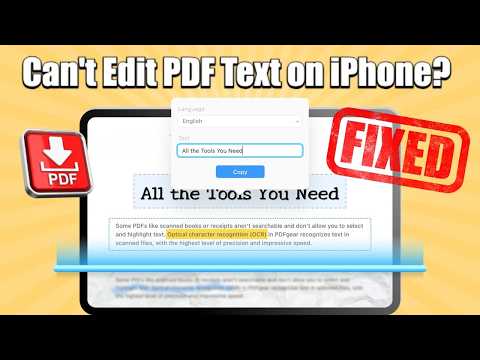
At Smart AI Fix, we understand the complexities of modern digital workflows. We are a leading authority in the US technology market, dedicated to providing expert solutions that bridge the gap between user needs and technological capabilities. This comprehensive guide will demystify the process of transforming those uneditable iPhone PDFs into fully editable documents using robust Optical Character Recognition (OCR) tools on your Mac or Windows computer. By the end of this guide, you’ll possess the knowledge to effortlessly edit any PDF, ensuring your digital documents are as flexible as your workflow demands.
Prerequisites for Seamless PDF Editing

Before diving into the detailed steps, ensure you have the following essential items and software ready. Having everything in place will guarantee a smooth and efficient process, minimizing interruptions and maximizing your productivity.
- Your iPhone: The source of your uneditable PDF document. Ensure it's charged and accessible.
- The PDF Document: The specific PDF file you wish to edit, currently stored on your iPhone.
- A Mac or Windows Computer: A desktop or laptop computer is necessary to run the OCR software. Ensure it has sufficient processing power and storage.
- Reliable OCR Software: A dedicated Optical Character Recognition program installed on your Mac or Windows machine. Examples include Adobe Acrobat Pro, ABBYY FineReader, Nitro Pro (Windows), or specialized OCR applications. For optimal results, invest in a reputable commercial tool, though free options exist with varying accuracy.
- Internet Connection: Required for downloading software, cloud transfers, and potential software updates.
- USB Cable or Cloud Storage Account:
- USB Cable: For directly transferring files from your iPhone to your computer (e.g., Lightning to USB cable).
- Cloud Storage: An active account with a service like iCloud Drive, Google Drive, Dropbox, or OneDrive. This is essential for wirelessly transferring PDFs between your iPhone and computer.
- Basic Computer Literacy: Familiarity with file management (copying, pasting, saving), installing software, and navigating your operating system.
Detailed Step-by-Step Guide: Unlocking Your PDF's Editable Potential

This section provides an exhaustive, step-by-step walkthrough to transform your uneditable PDF into an editable document using OCR technology. Follow each instruction carefully to achieve the best results.
Step 1: Transfer the PDF from Your iPhone to Your Computer
The first critical step is to move the uneditable PDF file from your iPhone to your Mac or Windows computer. There are several reliable methods for this transfer.
- Method A: Using Cloud Storage (Recommended for convenience)
- On your iPhone: Locate the PDF document. This might be in the Files app, Mail app, Safari downloads, or a specific document management app.
- Share the PDF: Tap the "Share" icon (usually a square with an upward arrow).
- Upload to Cloud: Select your preferred cloud storage service (e.g., "Save to Files" and choose iCloud Drive, or directly select Google Drive, Dropbox, etc.). Ensure you select a folder you can easily access from your computer.
- On your Computer: Open a web browser and navigate to your cloud storage provider's website, or open the desktop sync client if installed. Log in to your account.
- Download the PDF: Locate the uploaded PDF in the designated folder and download it to a convenient location on your computer (e.g., your Desktop or a specific "PDFs to Edit" folder).
- Method B: Using a USB Cable (Reliable for large files or no internet)
- Connect iPhone: Plug your iPhone into your Mac or Windows computer using a compatible USB cable.
- Trust Device: If prompted on your iPhone, tap "Trust This Computer" and enter your passcode.
- Access iPhone Storage (Windows): On Windows, your iPhone should appear as a portable device in "This PC" or "My Computer." Double-click on it, then navigate to "Internal Storage" and then "DCIM." PDFs might be buried within subfolders if saved as images or screenshots, but typically, for documents, you might need a dedicated file transfer tool or iTunes/Files App for easier access.
- Access iPhone Storage (Mac): On Mac, open the "Finder" sidebar, select your iPhone under "Locations." If the PDF is associated with a specific app, you might find it under the "Files" tab within the Finder window, allowing you to drag and drop files directly. Alternatively, use AirDrop if both devices are connected to the same Wi-Fi network and AirDrop is enabled on both.
- Copy the PDF: Drag and drop the PDF file from your iPhone's storage to a folder on your computer.
Step 2: Install and Launch Your Chosen OCR Software
If you haven't already, install the OCR software on your computer. Once installed, launch the application.
- Download & Install: If you're using commercial software, download the installer from the official website and follow the on-screen prompts for installation.
- Launch Application: Double-click the OCR software icon from your desktop, Start Menu (Windows), or Applications folder (Mac).
Step 3: Open the PDF Document in the OCR Software
Now, you need to import the PDF you transferred into the OCR application.
- From Software Interface: In the OCR software, look for options like "Open," "Import," "Add File," or "Scan to PDF."
- Browse and Select: Navigate to the folder where you saved the PDF document in Step 1. Select the file and click "Open."
- Initial Scan/Recognition (Optional): Some OCR tools might perform a quick initial scan or display the document as an image preview.
Step 4: Perform Optical Character Recognition (OCR)
This is the core step where the OCR software analyzes the PDF image to recognize text characters.
- Locate OCR Function: Find the OCR command within your software. This might be labeled "Recognize Text," "Perform OCR," "Convert to Editable PDF," or similar. It's often found in a "Tools," "Edit," or "Convert" menu.
- Configure Settings (If available): Some software allows you to choose language recognition, output profiles (e.g., "Exact Copy," "Editable Text," "Searchable Image"), and page ranges. For general editing, select "Editable Text" or "Microsoft Word Document" as the output type if available. Ensure the correct language for your document is selected for optimal accuracy.
- Start OCR Process: Click the button to initiate the OCR process. This may take a few seconds to several minutes, depending on the PDF's length, complexity, and your computer's performance. A progress bar usually indicates the current status.
Step 5: Edit the Now-Editable Text
Once the OCR process is complete, the document will transform from a static image into a document with selectable, editable text.
- Review and Correct: Carefully review the newly recognized text. OCR technology is highly advanced but not always 100% perfect, especially with poor quality scans, unusual fonts, or complex layouts. Look for any misrecognized characters, formatting errors, or layout inconsistencies.
- Make Edits: Use the software's built-in text editor to make your desired changes. You can add, delete, or modify text, adjust fonts, sizes, and colors, and even rearrange paragraphs or images, depending on the software's capabilities.
- Utilize Advanced Features: Many OCR programs integrate with word processors, allowing you to send the recognized text directly to Microsoft Word or other text editors for more extensive editing.
Step 6: Save Your Edited Document in a New, Editable Format
After completing your edits, it’s crucial to save the document in a format that preserves your changes and remains editable.
- Choose Output Format: Go to "File" > "Save As" or "Export." You will typically have several options:
- Editable PDF: Saves the document as a new PDF where the text layer is now fully editable and searchable. This is often the preferred choice if you need to retain the PDF format but want future editability.
- Microsoft Word Document (.docx): Converts the PDF content into a Word document, ideal for extensive text editing in a familiar environment.
- Rich Text Format (.rtf) or Plain Text (.txt): Simpler text formats, useful if you only need the raw text without complex formatting.
- Select Destination: Choose a clear, accessible location on your computer to save the new file.
- Name the File: Give the file a descriptive name (e.g., "Edited_MyDocument.docx" or "MyDocument_Editable.pdf") to distinguish it from the original uneditable version.
- Final Save: Click "Save" to complete the process.
Step 7: Transfer the Edited Document Back to Your iPhone (Optional)
If you need the edited document back on your iPhone for mobile access, repeat the transfer process in reverse.
- Cloud Storage: Upload the newly saved editable document from your computer to your preferred cloud service. Then, on your iPhone, open the cloud app and download or open the document.
- Email: Attach the edited document to an email and send it to yourself. Open the email on your iPhone and save the attachment.
- AirDrop (Mac to iPhone): If you’re using a Mac, simply drag the file to the AirDrop icon in Finder and select your iPhone.
Key Features & Comparison of OCR Solutions
Choosing the right OCR tool significantly impacts the quality and efficiency of your PDF editing workflow. Here, we compare different categories of OCR solutions and highlight essential features to look for.
| Feature Category | Premium Desktop OCR Software (e.g., Adobe Acrobat Pro, ABBYY FineReader) | Free Online OCR Tools (e.g., Google Docs OCR, freeocr.com) | Integrated Document Suites with OCR (e.g., Microsoft Office 365, LibreOffice) |
| Accuracy & Quality | Pros: Highest accuracy, advanced algorithms for complex layouts, multiple language support, handles poor quality scans exceptionally well. |
Pros: Decent for simple, high-quality documents, quick and easy for one-off tasks. |
Pros: Integrated into existing productivity suite, good for basic documents. |
| Functionality & Editing | Pros: Full suite of PDF editing tools, batch processing, form creation, security features, direct conversion to various formats (Word, Excel, PPT). |
Cons: Limited editing capabilities post-OCR, often extracts only plain text, may lose original formatting. |
Pros: Allows immediate editing in familiar word processor, decent formatting preservation for simple layouts. |
| Privacy & Security | Pros: Processes files locally on your computer, offering maximum privacy for sensitive documents. Robust security features. |
Cons: Requires uploading documents to a third-party server, potential privacy risks, especially for confidential information. Always review privacy policies. |
Pros: Processing often occurs locally or within a trusted corporate environment, offering better security than public online tools. |
| Cost | Cons: Typically requires a one-time purchase or a subscription fee, which can be significant. |
Pros: Free to use, making it highly accessible for casual users. |
Pros: Often included with an existing software license or subscription, adding value without extra cost. |
| Ease of Use | Cons: Can have a steeper learning curve due to extensive features, but offers comprehensive tutorials. |
Pros: Extremely straightforward, typically involves uploading and downloading. |
Pros: Intuitive for users already familiar with the suite's interface. |
Pro Tips & Optimization for Enhanced PDF Management
Beyond the basic steps, these professional tips will help you maximize the efficiency, accuracy, and security of your PDF editing workflow, offering insights not commonly found in standard guides.
- Optimize Source Document Quality: The cleaner and higher resolution your original PDF or scanned image, the more accurate the OCR results will be. Before running OCR, ensure the document is free from distortions, shadows, or low contrast. If scanning physical documents, use a high DPI setting (e.g., 300-600 DPI) and ensure good lighting.
- Utilize Batch Processing: If you have multiple PDFs to process, many advanced OCR tools offer batch processing capabilities. This allows you to queue several documents for OCR recognition and conversion simultaneously, saving significant time compared to processing each file individually. Explore your software's features for this option.
- Leverage Cloud Sync for Version Control: When working with important documents, save your OCR-processed and edited files to a cloud storage service that supports version history (like iCloud Drive, Google Drive, or Dropbox). This ensures you can revert to previous versions if needed and provides a reliable backup.
- Security Best Practices for Sensitive Data: For PDFs containing confidential information, avoid using free online OCR tools, as they require you to upload your data to external servers. Always opt for reputable desktop-based OCR software that processes files locally on your computer to maintain data privacy and security. Encrypt your sensitive PDFs once edited.
- Master Post-OCR Review: Treat the OCR output as a draft. Always dedicate time to thoroughly review the converted text against the original PDF. Pay close attention to numbers, special characters, and obscure words, as these are common areas for OCR errors. Using the original PDF side-by-side during review significantly improves accuracy.
- Explore Advanced Output Options: Many professional OCR tools offer various output options beyond just .docx. You might be able to export to Excel for data extraction, PowerPoint for presentations, or even EPUB for e-readers. Understanding these options can broaden how you utilize your document content.
Frequently Asked Questions (FAQ)
Why can't I edit PDF text directly on my iPhone using standard apps?
PDF (Portable Document Format) files are fundamentally designed to present documents in a fixed, unchangeable format, ensuring they look the same regardless of the device or software used to view them. When you create a PDF from a document, it essentially captures an "image" of the text and layout. While some advanced PDF viewer apps on iPhone allow for annotations, highlighting, or even filling out forms, they generally do not provide direct text editing capabilities in the same way a word processor does. The underlying text isn't a fluid, editable layer but rather a static representation, making OCR (Optical Character Recognition) software on a desktop computer necessary to convert that static image into editable text.
Is OCR always 100% accurate, especially with complex documents?
While OCR technology has made incredible strides and is highly accurate for clean, high-resolution documents with standard fonts, it is not always 100% perfect. Accuracy can vary significantly based on several factors: the quality of the original scan or PDF (e.g., blurriness, skew, low resolution), the complexity of the document's layout (multiple columns, mixed text and images), the font type (unusual or decorative fonts are harder to recognize), and the language. For highly complex or poor-quality documents, OCR might introduce errors, particularly with numbers, special characters, or similar-looking letters (e.g., "i" and "l"). Therefore, a thorough post-OCR review and manual correction are almost always recommended, especially for critical documents.
Are there any completely free OCR tools that work well, or should I invest in a paid one?
Yes, there are several free OCR tools available, both online and as basic desktop applications. Online services like Google Docs (which has built-in OCR for uploaded images/PDFs), freeocr.com, or OnlineOCR.net can be very convenient for occasional, simple tasks involving high-quality documents. However, free tools often come with limitations: lower accuracy, less robust formatting preservation, limited file size uploads, potential privacy concerns (as you upload your document to a third-party server), and a lack of advanced editing features. For critical business documents, frequent use, or dealing with complex layouts and sensitive information, investing in a reputable paid OCR software (like Adobe Acrobat Pro or ABBYY FineReader) is strongly recommended. Paid solutions offer superior accuracy, comprehensive editing suites, batch processing, and enhanced security, making them a worthwhile investment for professional use.
Conclusion
Navigating the digital landscape often presents unique challenges, and the inability to edit PDF text on your iPhone is a common hurdle for many users. However, as this ultimate guide has demonstrated, with the right approach and the power of OCR technology on your Mac or Windows computer, this challenge is easily surmountable. By following our detailed steps and implementing the pro tips, you can transform static, uneditable PDFs into dynamic, fully customizable documents, empowering your workflow and maximizing your productivity.
At Smart AI Fix, our mission is to equip you with the knowledge and tools to conquer complex tech issues. We believe that understanding the nuances of digital document management is crucial in today's fast-paced world. Trust Smart AI Fix to continue providing cutting-edge insights and practical solutions for all your technology needs.
